Tvaro TV Manager
Put Tvaro on your TV.
A free app for your computer or Android phone that finds your Samsung or LG TV on your home network, guides you through Developer Mode and installs Tvaro IPTV Player in a few minutes.
Formerly Tvaro TV Installer
FreeWindows, macOS, Linux and AndroidSamsung and LG TVs

What it does
Everything your TV needs, from one app.
Finds your TV
Lists every TV it can find on your home network. It installs on Samsung and LG, and tells you what works for the ones it can’t install on. You can also add a TV by its IP address.
Shows you what to do
Clear steps for your exact TV, with the address to type and a check that tells you when the TV is ready.
Installs Tvaro IPTV Player
Downloads the latest version, prepares it for your TV and sends it over your network, with live progress.
Keeps it up to date
Tells you when a newer Tvaro IPTV Player is available for a TV, and updates it with one click.
How it works
Three steps to Tvaro on your TV.
Turn on your TV, connect it to the same network as your computer or phone, and open TV Manager.
Step 1
Find your TV
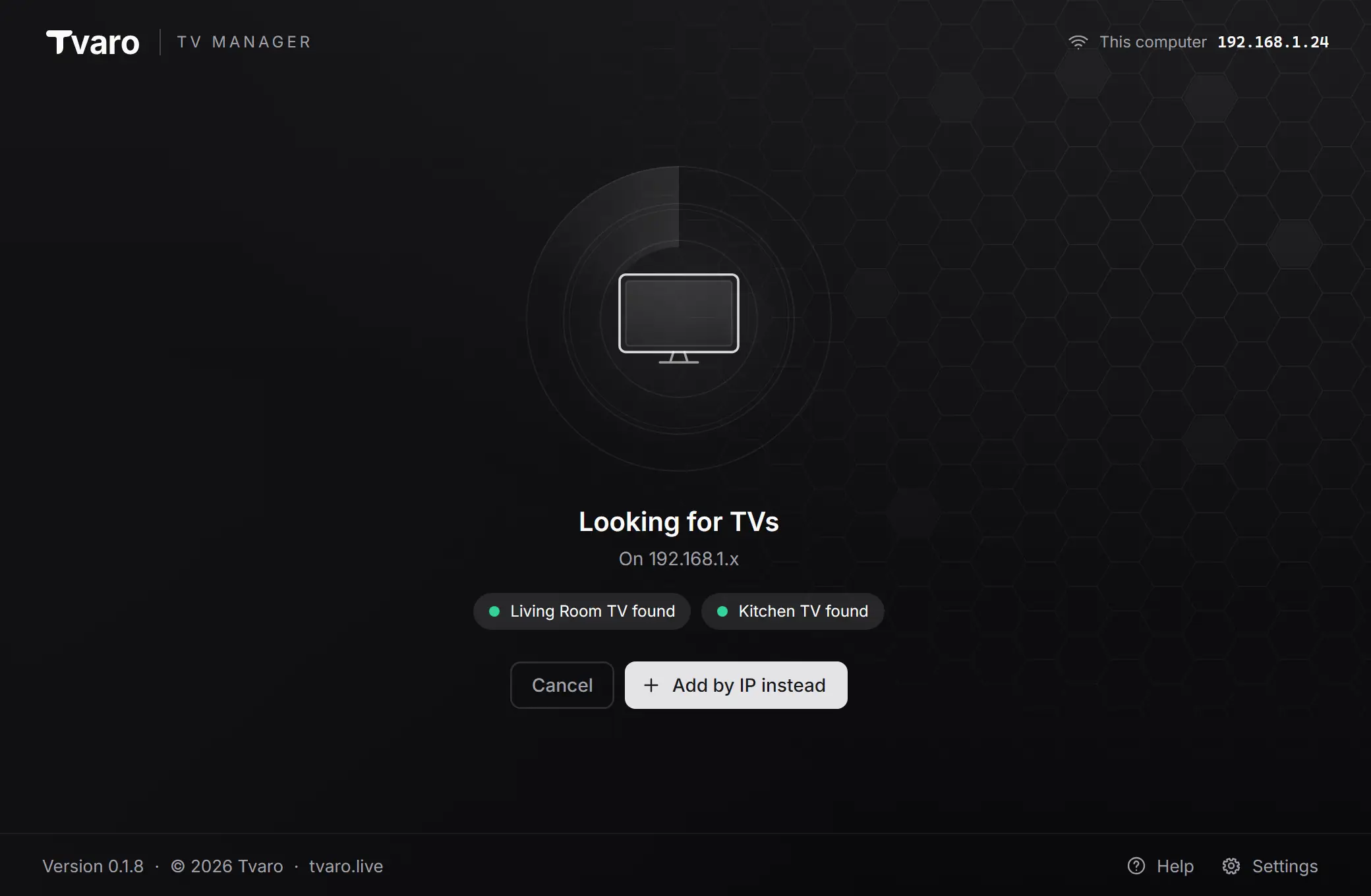
Select Find my TV. TV Manager lists every TV it can find on your network as each one answers, and tells you what works for the ones it can’t install on.
Step 2
Turn on Developer Mode
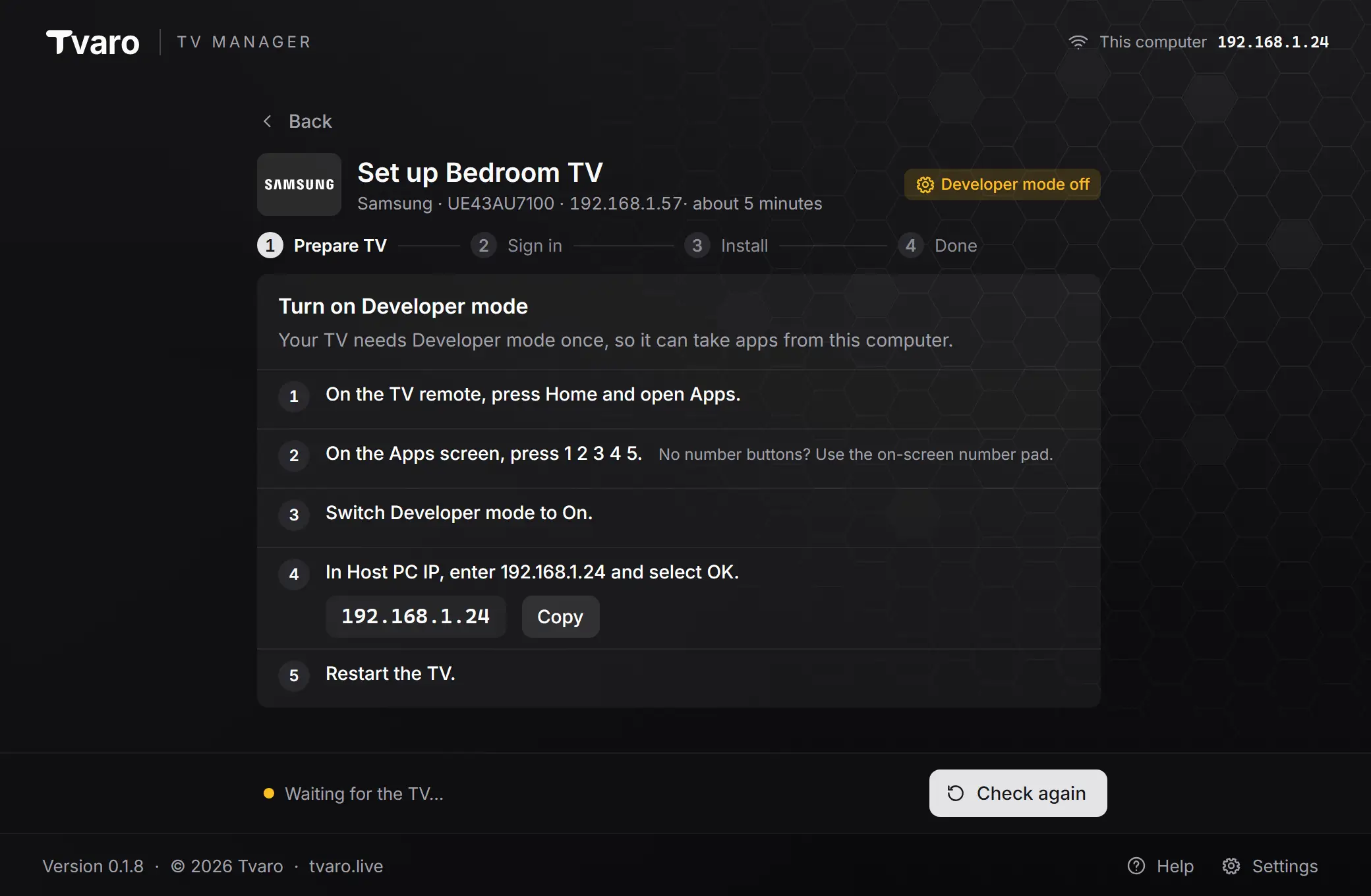
If your TV needs Developer Mode, TV Manager shows the steps for that TV, including the address of your computer or phone to type in, then checks again when you’re done.
Step 3
Install
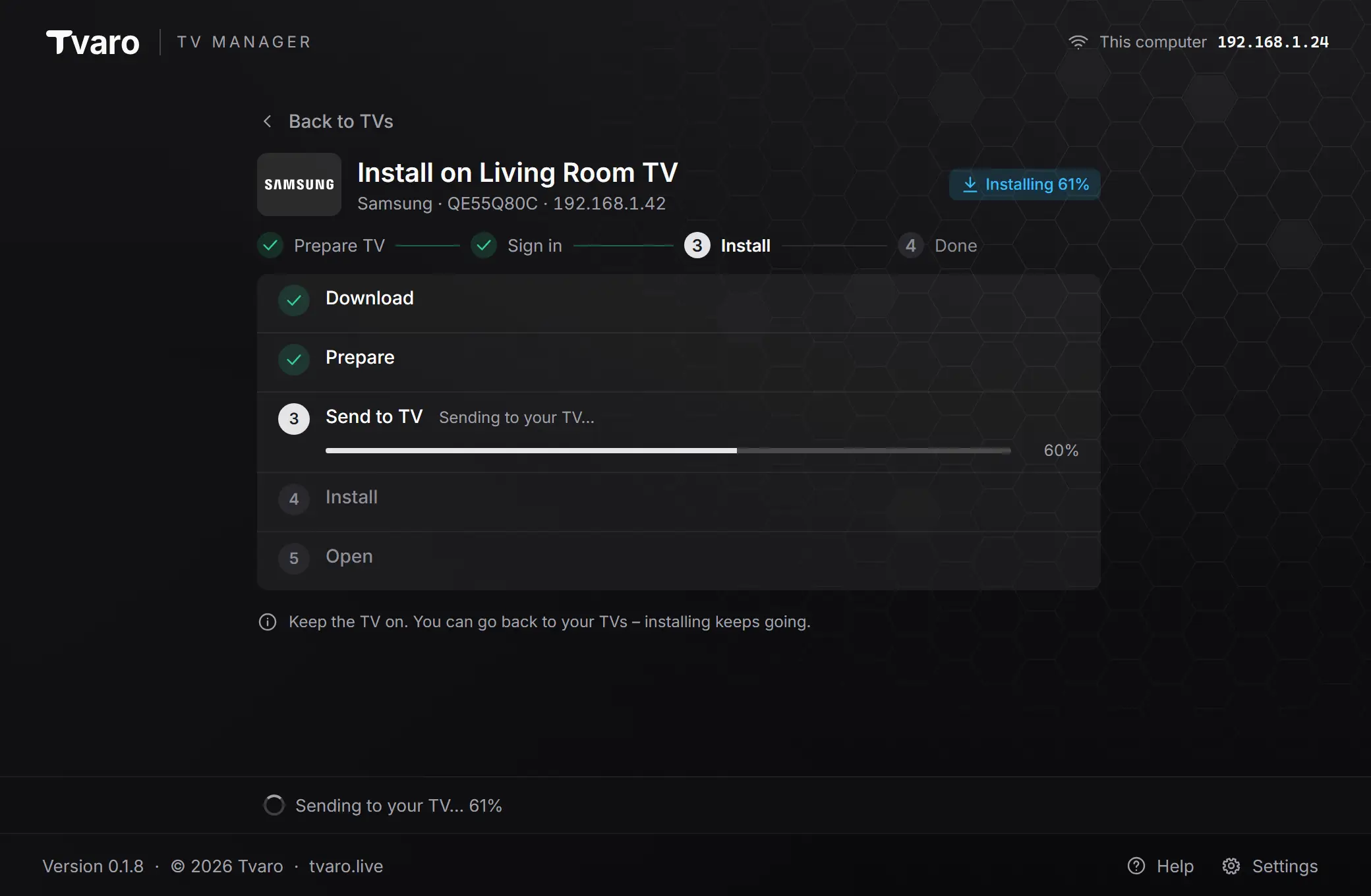
Select Install and follow along as Tvaro IPTV Player downloads, is prepared for your TV and arrives on screen. Then open it on the TV and add your playlist.


On your phone
Or set up your TV from your Android phone.
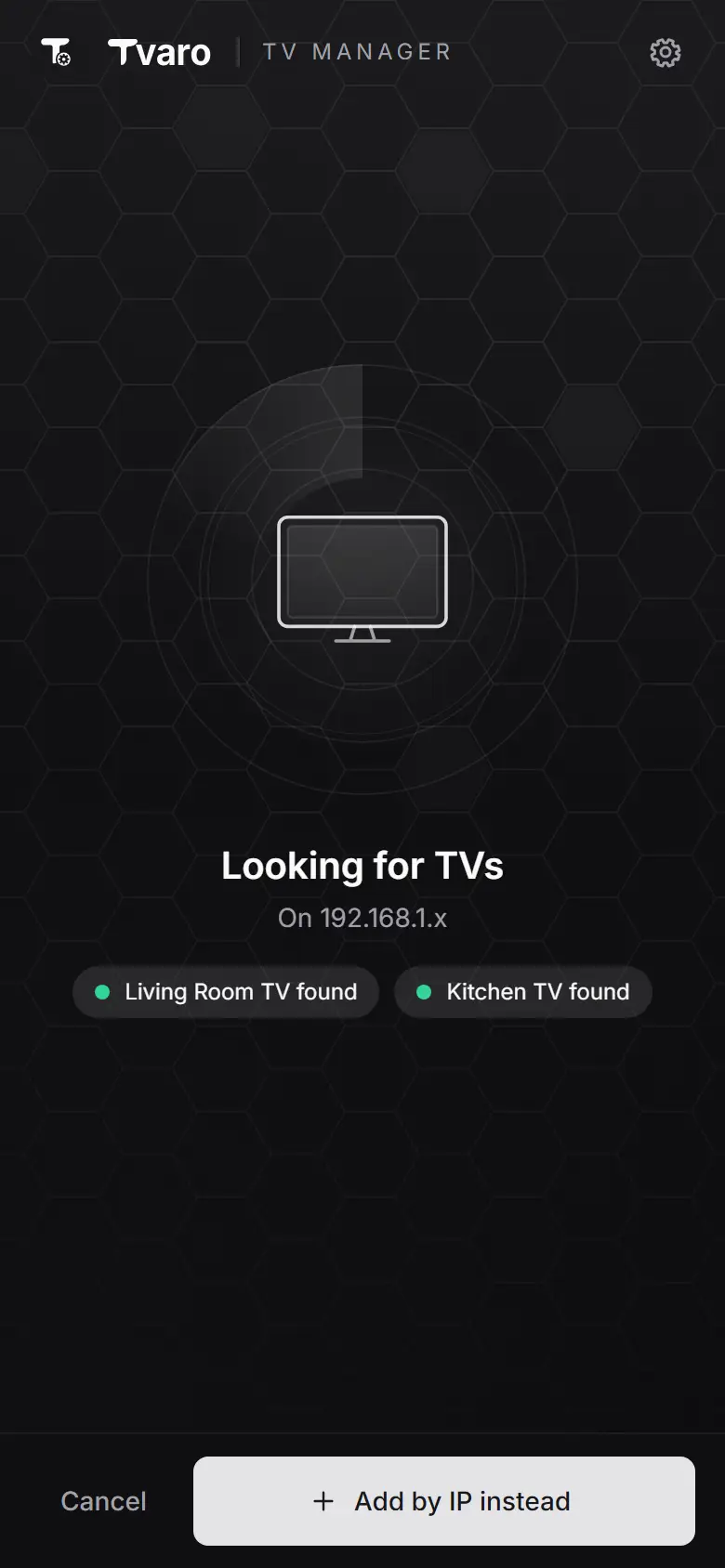
The same app runs on Android phones and tablets. Connect your phone to the same Wi‑Fi as your TV and follow the same steps. It can also install and update Tvaro IPTV Player on the phone itself, on Android 9 or later, and Android asks you to confirm.
Looking for TVs 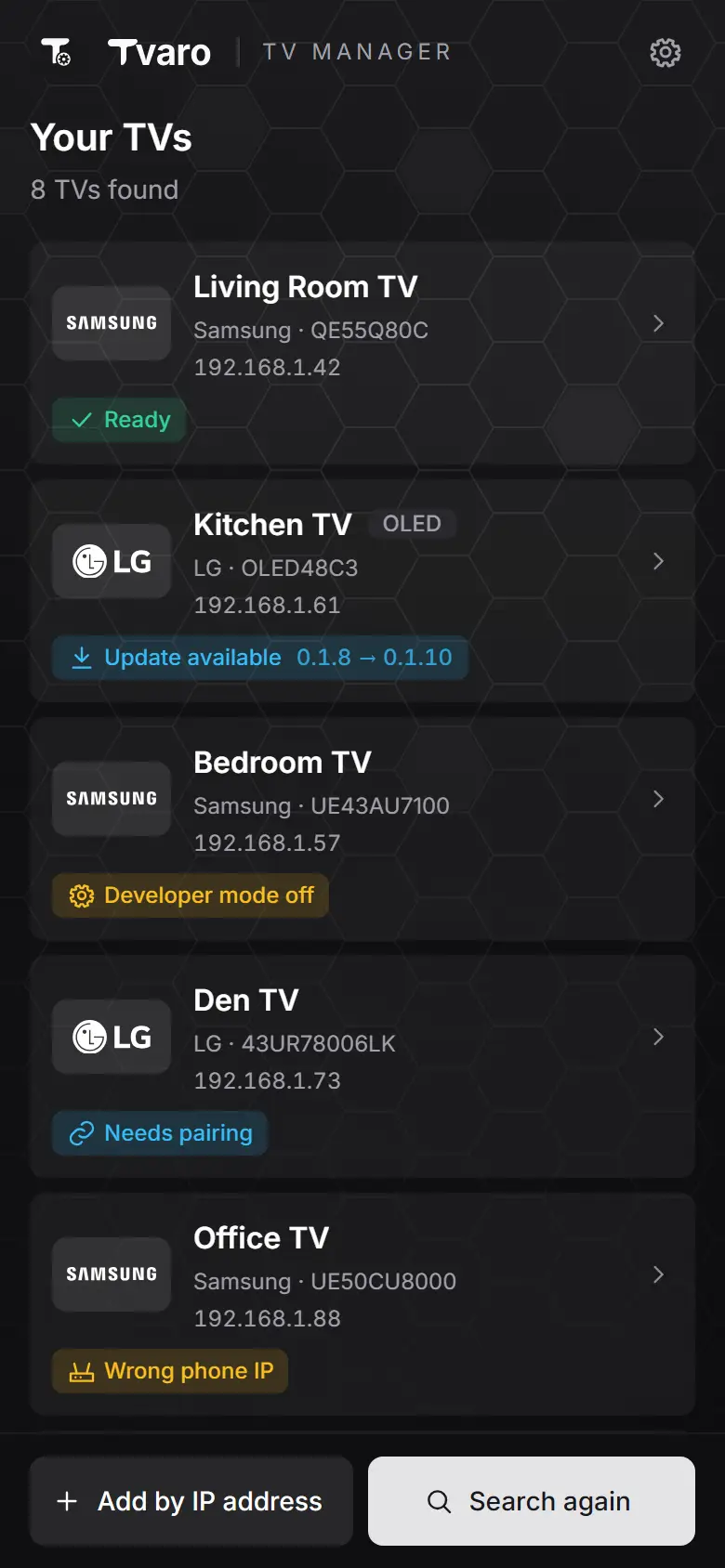
Your TVs 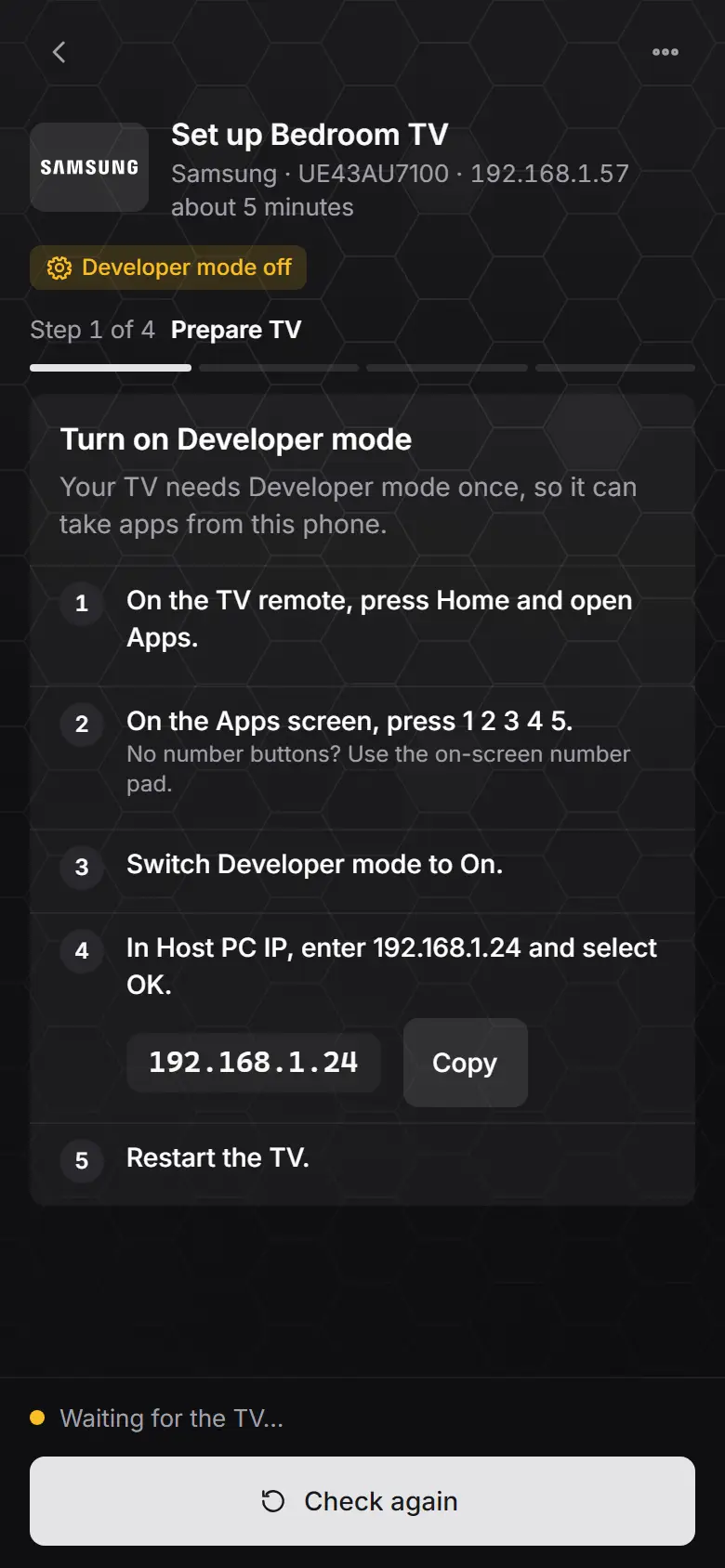
Developer Mode steps 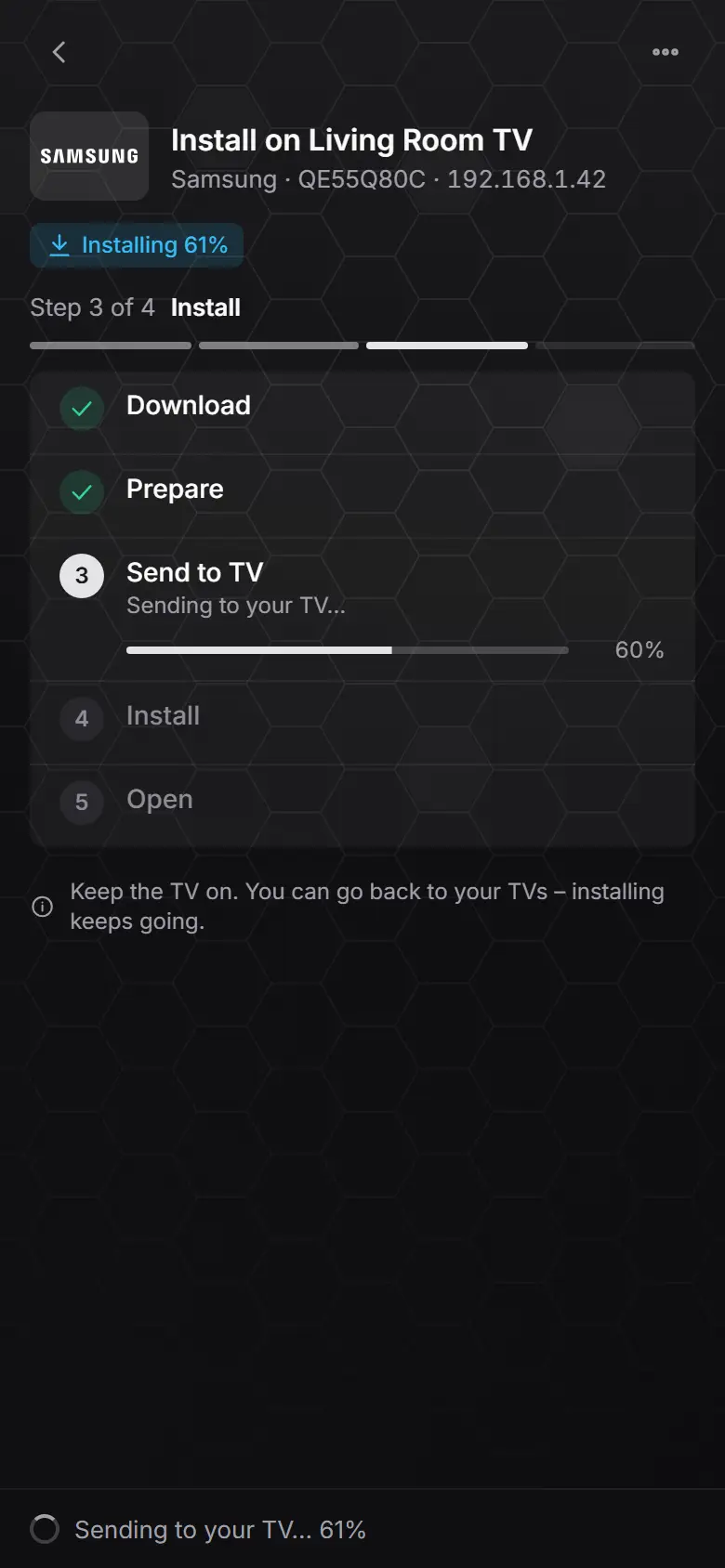
Installing 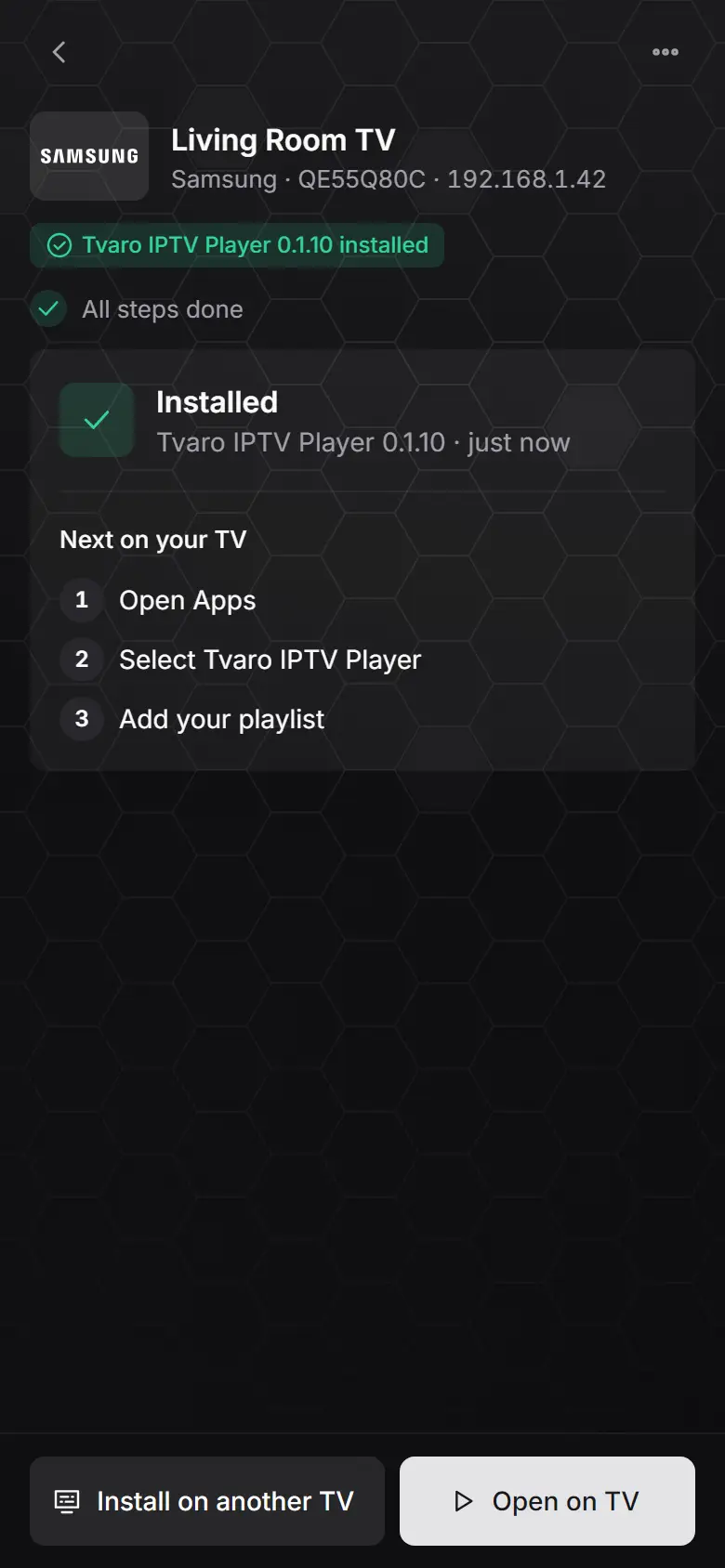
Installed


Supported TVs
Samsung smart TVs from 2019 or later, running Tizen 5.0 or newer.
LG smart TVs with webOS that can install the Developer Mode app from LG Content Store. It needs a free LG Account.
Not sure about your TV? TV Manager lists every TV it can find and tells you which ones it can install on. See TV compatibility
Requirements
Windows
Windows 10 or 11 (64-bit).
macOS
A Mac with Apple Silicon (M1 or later).
Linux
A 64-bit (x86_64) distribution, with a .deb, .rpm or AppImage download.
Android
An Android phone or tablet with Android 7.0 or later.
Same network
Your computer or phone and your TV on the same home network. A phone connects over Wi‑Fi.
Download
Get Tvaro TV Manager.
Free. Install it on a computer or an Android phone at home, on the same network as your TV.
- WindowsYour deviceWindows 10 and 11, 64-bit
- macOSYour deviceApple Silicon (M1 or later)
- LinuxYour deviceDebian and Ubuntu
- LinuxYour deviceFedora and openSUSE
- LinuxYour deviceAny 64-bit distribution
- AndroidYour devicePhones and tablets, Android 7.0 or later
TV Manager keeps itself up to date. On Windows it installs for your user account, with no admin rights needed.
On an Android phone or tablet
Use a phone or tablet on the same Wi‑Fi as your TV.
- Download the APK on your phone and open it.
- If Android asks, allow your browser or Files app to install unknown apps, then go back.
- Select Install, then open Tvaro TV Manager and select Find my TV.
FAQ
Questions and answers
Is it safe?
Yes. TV Manager uses the Developer Mode that Samsung and LG build into their TVs, and it only installs Tvaro IPTV Player. It talks to your TV directly over your home network and never asks for your playlist or subscription. Anonymous compatibility details are shared only if you choose to.
Why does my TV need Developer Mode?
Tvaro IPTV Player is installed from your computer or phone instead of the TV’s app store. Developer Mode is the TV’s own setting for accepting apps from a device on your network, and TV Manager shows you exactly how to turn it on.
Do I need a Samsung account?
For a Samsung TV, yes, once. Samsung TVs only run apps signed for that TV, so Samsung asks you to sign in one time to sign Tvaro IPTV Player for it. You sign in on Samsung’s own page in your browser, and TV Manager never sees your password. LG TVs don’t need a Samsung account.
What happens when LG Developer Mode runs out?
On LG TVs, Developer Mode lasts for a limited time. When it runs out, the TV removes apps installed this way, including Tvaro IPTV Player. TV Manager shows the time left on the TV’s page and renews it with one click, or you can select Extend in the Developer Mode app on the TV. If it has already run out, turn Developer Mode on again and reinstall.
My TV isn’t Samsung or LG
TV Manager only installs on Samsung and LG TVs. On Android TV, Google TV and Fire TV models with Fire OS, use the Downloader app with the code 4407301 instead. For any other TV, check the TV compatibility page. See TV compatibility