Docs menu
Appearance
Give Tvaro your own look with six themes and four background patterns, switch between English and Arabic, and choose a 12- or 24-hour clock.
Tvaro is dark by design, and you choose its mood. Themes, background patterns and the app language all live in Settings › General, and each profile keeps its own choices.
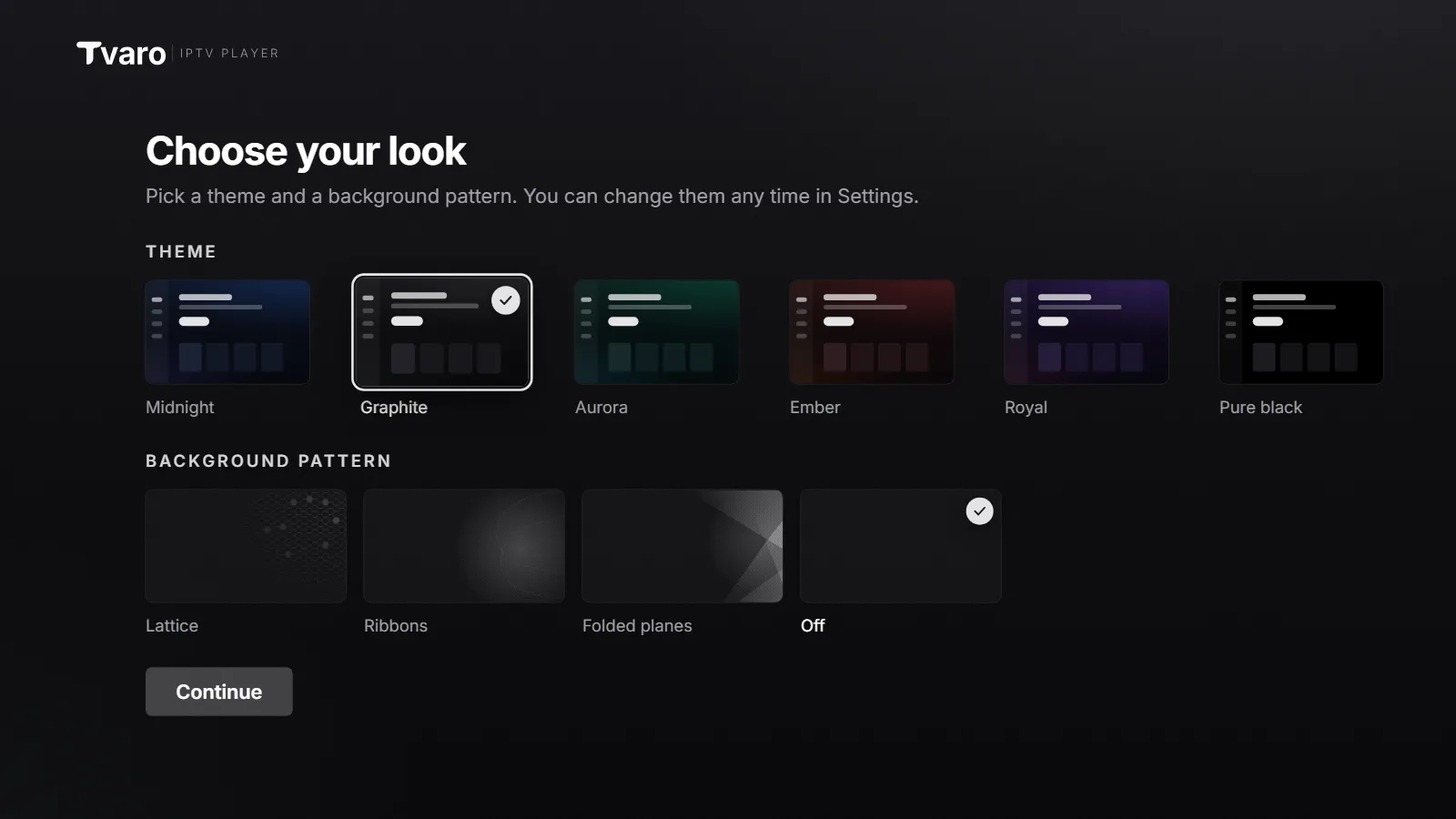
Choose your look
The first time you choose Add your account or Explore the demo, the Choose your look screen lets you pick a theme and a background pattern. Each choice previews straight away. Select Continue to keep your picks. You can change both later at any time.
Themes
Open Settings › General › Theme. Every theme keeps the same light highlight for the item you are on; what changes is the background tint.
| Theme | Look |
|---|---|
| Midnight (default) | Deep navy with a blue glow |
| Graphite | Charcoal with a cool gray glow |
| Aurora | Dark teal with green and sky-blue light |
| Ember | Deep red-brown with rose and orange light |
| Royal | Deep purple with violet and pink light |
| Pure black | True black with no glow |
Background patterns
Open Settings › General › Background pattern. The pattern is subtle artwork drawn behind menus and rails.
- Lattice (default): a fine grid of small shapes
- Ribbons: flowing curved lines
- Folded planes: angled, folded surfaces
- Off: a plain background
Language
Open Settings › General › Language and choose English or العربية. You can also pick the language on the welcome screen the first time you open Tvaro.
Choosing Arabic switches the whole app to right-to-left:
- The sidebar moves to the right side of the screen and lists read from right to left.
- In the player, Left and Right are mirrored, so seeking follows the reading direction.
- The on-screen keyboard switches to an Arabic layout.
Because language belongs to the profile, one person can use Tvaro in Arabic while another uses English on the same device.
Clock
Settings › General › Clock switches between 12-hour (the default) and 24-hour time. It changes how times appear across the app, including the TV guide. Unlike themes and language, the clock format applies to every profile on the device.
Motion
If you prefer a calmer screen, turn on Reduce motion in Settings › Accessibility. It turns off zoom and slide animations.
Tip
Themes, patterns and language are saved per profile, so each person in the house can have their own look. Switch profile to see theirs.