Docs menu
Home
Find your way around Home in Tvaro IPTV Player, from the hero carousel and rails to Continue Watching and notifications.
Home gathers the best of your library in one place: a large hero carousel at the top and rows of channels, movies and series below it. Open it any time with Home in the sidebar.
The hero carousel
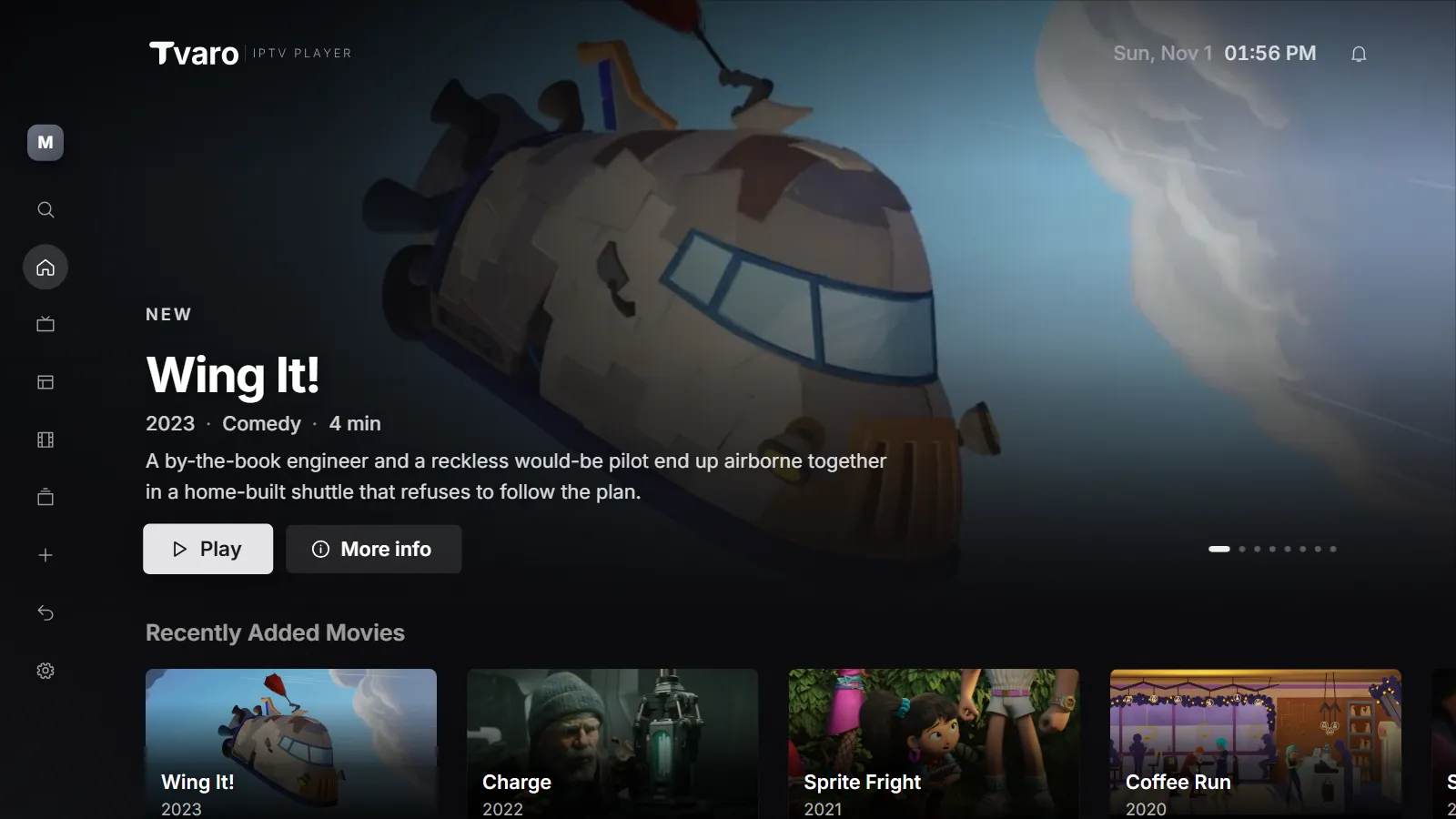
The hero fills the top of the screen with artwork, a short description and two buttons. It shows up to eight slides, picked from your library:
- Top rated · #1, #2 and so on: well-rated movies and series.
- New: titles your provider added recently.
- Continue Watching: the movie or episode you watched most recently, so you can pick it up again in one step.
If your library has no movies or series, the hero shows a live channel instead.
Using the hero
- Select Play to start the title, or Resume to carry on where you stopped. For a channel the button reads Watch now.
- Select More info to open the movie or series details page.
- Press Left or Right on the buttons to move between slides.
Slides change on their own every few seconds. They pause briefly while you use the remote, and they stay still when Reduce motion is on in Settings › Accessibility.
Rails
Below the hero, rails group your library. Each rail shows up to 30 items, and a rail with nothing in it is not shown. Depending on your library and what you’ve watched, you may see:
| Rail | What it holds |
|---|---|
| Continue Watching | Movies and episodes you started but didn’t finish |
| Favorite Channels | Channels you marked as favorites |
| Recent Channels | Channels you watched lately |
| Favorites | Movies and series you marked as favorites |
| Recently Added Movies, Recently Added Series | The newest titles from your provider |
| Top Rated Movies, Top Rated Series | The highest-rated titles |
| Live Now | Channels with what’s on right now |
| Catch-Up | Channels that let you replay past programmes |
| Series | Series from your library |
| More followed by a genre | Movies from one genre |
As you move along a rail, the top of the screen shows the focused item’s artwork and details.
Opening items
- A channel starts playing straight away.
- A movie or series opens its details page. Press Play on the remote (Space on a keyboard) to start it right away instead.
- An episode in Continue Watching resumes where you left off.
Hidden channels and content locked by parental controls don’t appear on Home.
Continue Watching
Continue Watching is the first rail, so the things you’re in the middle of are always one step away. A movie or episode appears here once you start it, with a bar showing how far you got, and leaves the rail when you finish it.
Removing an item
You can remove items from Continue Watching and Recent Channels:
- Focus the item.
- Hold OK (or right-click) and choose Remove from Continue Watching or Remove from recently watched. On a TV remote you can press Red instead (F1 on a keyboard).
- Confirm with Remove.
Note
Removing a movie or episode from Continue Watching also clears its resume point, and this can’t be undone.
To clear the whole rail at once, use Clear Continue Watching in Settings › History & privacy.
Check notifications
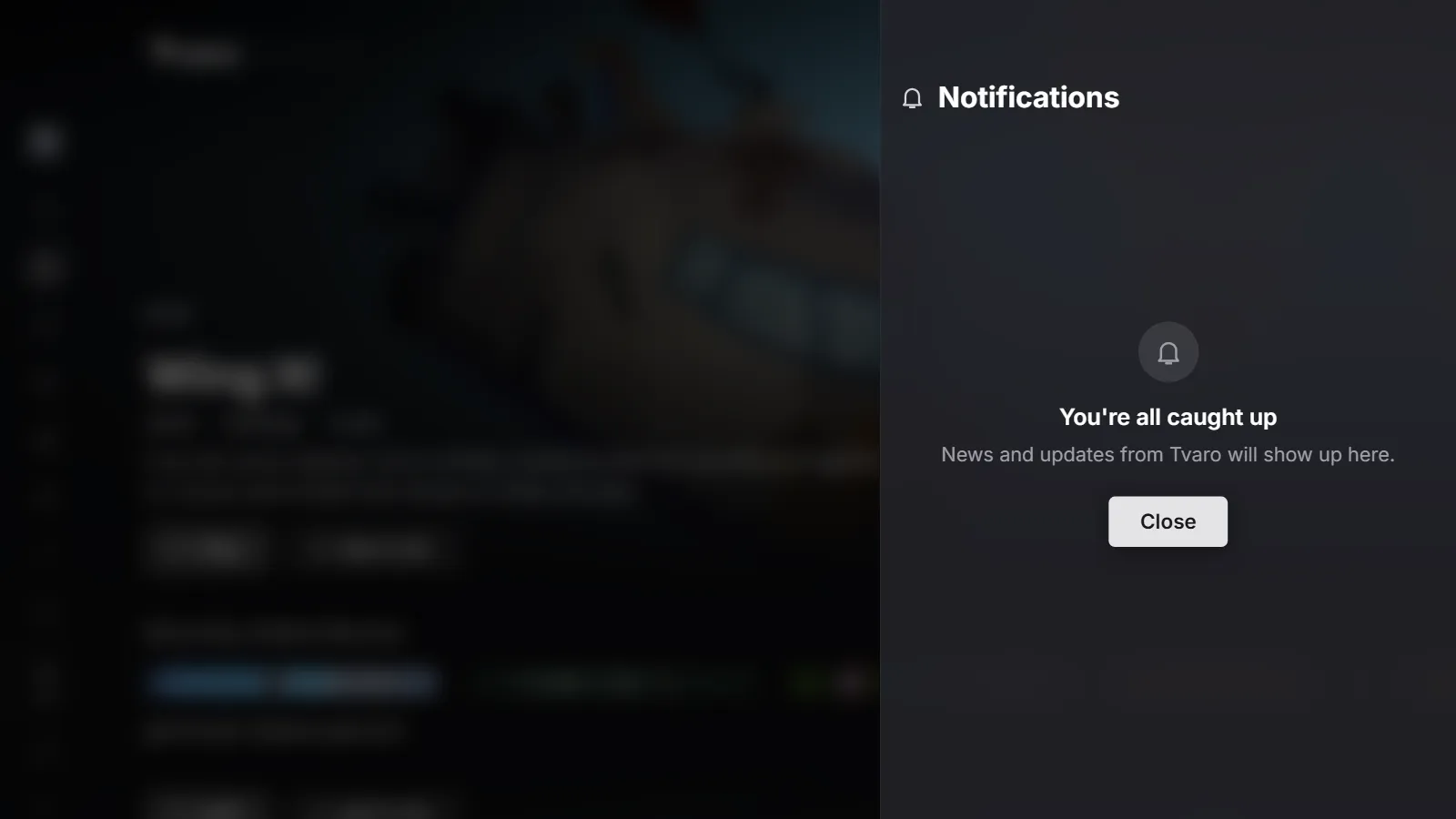
News and updates from Tvaro appear under the bell at the top of the screen, which shows a mark when something is unread.
- Select the bell. On a phone, open Notifications from the menu.
- Notifications opens with the latest news first. Select an item to read it.
- Press Back to close the panel.
When there’s nothing new, the panel says You’re all caught up.