Docs menu
Settings
Learn what every Tvaro IPTV Player settings section does, from language and subtitles to data saving, network, guide and playlist updates and storage.
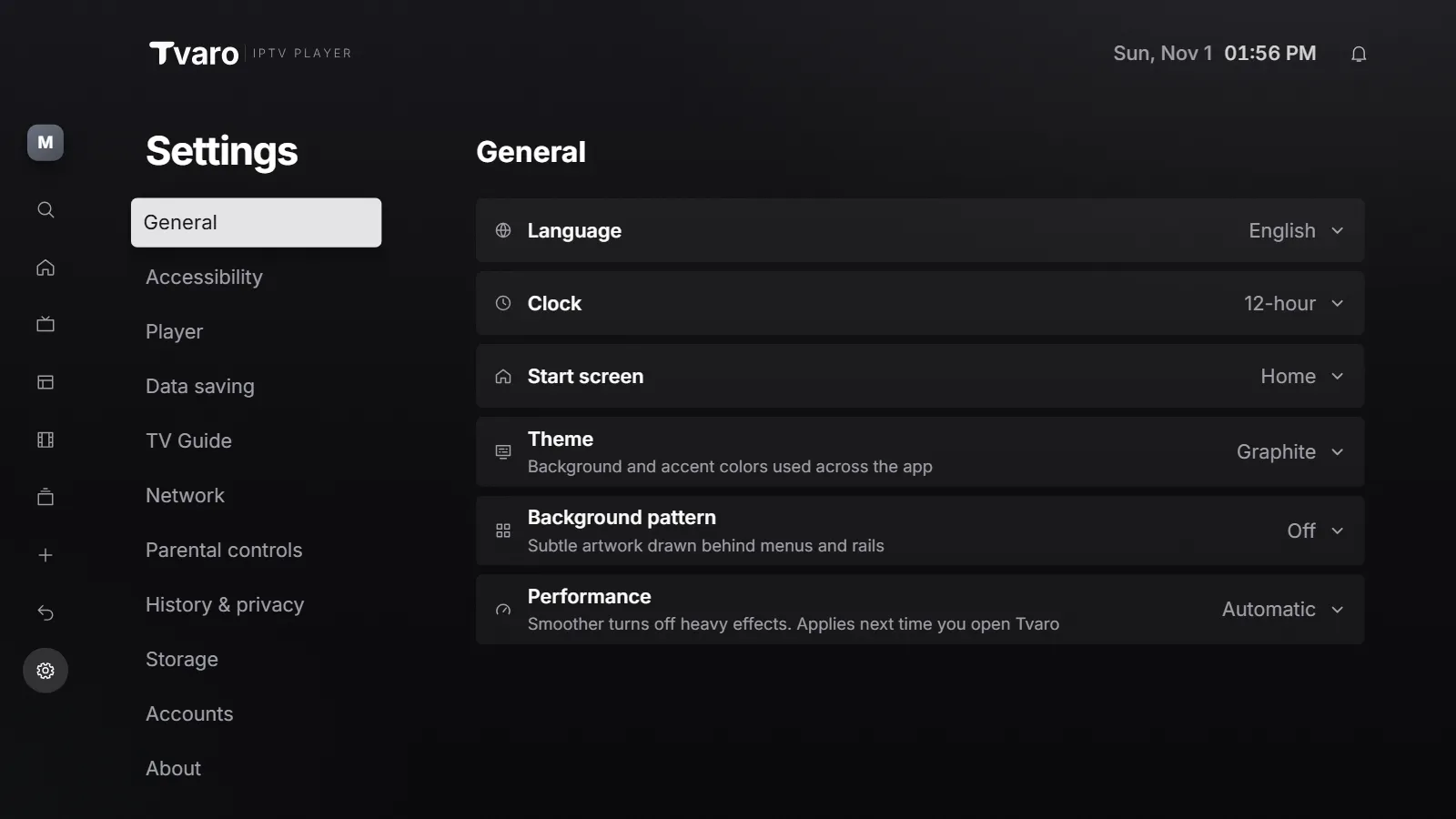
Settings is where you tune Tvaro to the way you watch. Open Settings from the sidebar, pick a section from the list, then move across to change its options.
How settings are saved
Changes apply straight away. There is no Save button.
Some options belong to the profile that is watching, so everyone in the house can have their own: Language, Theme, Background pattern, Reduce motion, all subtitle appearance options, Player style, Autoplay next episode, the preferred audio and subtitle languages, Guide layout, Auto-play preview and Save watch history. Everything else applies to the whole device. The sections below follow the order of the list in the app.
General
| Option | Choices | What it does |
|---|---|---|
| Language | English, العربية | The language of the app. Arabic switches the layout to right-to-left. |
| Clock | 12-hour (default), 24-hour | How times are shown across the app and the guide. |
| Start screen | Home (default), Live TV, TV Guide, Last channel | The screen Tvaro opens on. Last channel opens Home if no channel was watched yet. |
| Theme | Midnight (default), Graphite, Aurora, Ember, Royal, Pure black | Background and accent colors used across the app. |
| Background pattern | Lattice (default), Ribbons, Folded planes, Off | Subtle artwork drawn behind menus and rails. |
The Appearance page shows every theme and pattern.
Accessibility
Reduce motion turns off zoom and slide animations. It is off by default.
The rest of this section controls how subtitles look. A Preview at the top shows the result over a paused video as you change each option.
| Option | Choices | Default |
|---|---|---|
| Subtitle size | Small, Medium, Large | Medium |
| Subtitle color | White, Yellow, Cyan, Green | White |
| Text edge | Outline, Drop shadow, None | Drop shadow |
| Subtitle background | On or off: a dark box behind subtitles for easier reading | On |
| Background opacity | 40%, 60%, 80% (shown only while the background is on) | 80% |
| Subtitle position | Bottom, Raised | Bottom |
Player
| Option | Choices | What it does |
|---|---|---|
| Player style | Classic (default), Cinema, Glass, Broadcast | How the on-screen controls look while you watch. Not shown on phones. |
| Autoplay next episode | On (default) or off | Starts the next episode after a 10-second countdown. |
| Preview videos on focus | On or off | Plays a few seconds at the top of Home when you rest on a title. |
| Start previews with sound | Off (default) or on | Shown while previews are on. When off, previews start muted. |
| Home banner preview | On or off | Phones only, in place of the two rows above. Plays a muted preview on the Home banner. |
| Seek previews | Always, Wi-Fi only (default), Off | Shows small pictures of the scene as you seek. Off shows the time only and uses no extra data. |
| Sleep timer | Off, 15, 30, 45, 60, 90 or 120 min | Stops playback after the chosen time. While it runs, the row shows the time left. |
| Picture size | Fit (default) and the sizes your device supports | The default for every stream. You can still change it from Options in the player. |
| Reconnect automatically | On (default) or off | Retries when a stream drops or the network returns. |
| Preferred audio language | Auto (default) or a language | Picks this audio track when a stream offers it. |
| Subtitles on by default | Off (default) or on | Turns subtitles on whenever a stream has them. |
| Preferred subtitle language | Auto (default) or a language | The subtitle language to choose when subtitles are on. |
The language lists include English, Arabic, French, Spanish, German, Italian, Turkish, Portuguese, Russian, Dutch, Polish, Persian, Urdu and Hindi. While Data saver is on, previews and autoplay are turned off and their rows say Off while Data saver is on. The Player page explains picture sizes and seek previews.
Devices
Seek previews isn’t on Samsung, where seeking shows the time only. Preview rows appear only on devices that can play previews.
Data saving
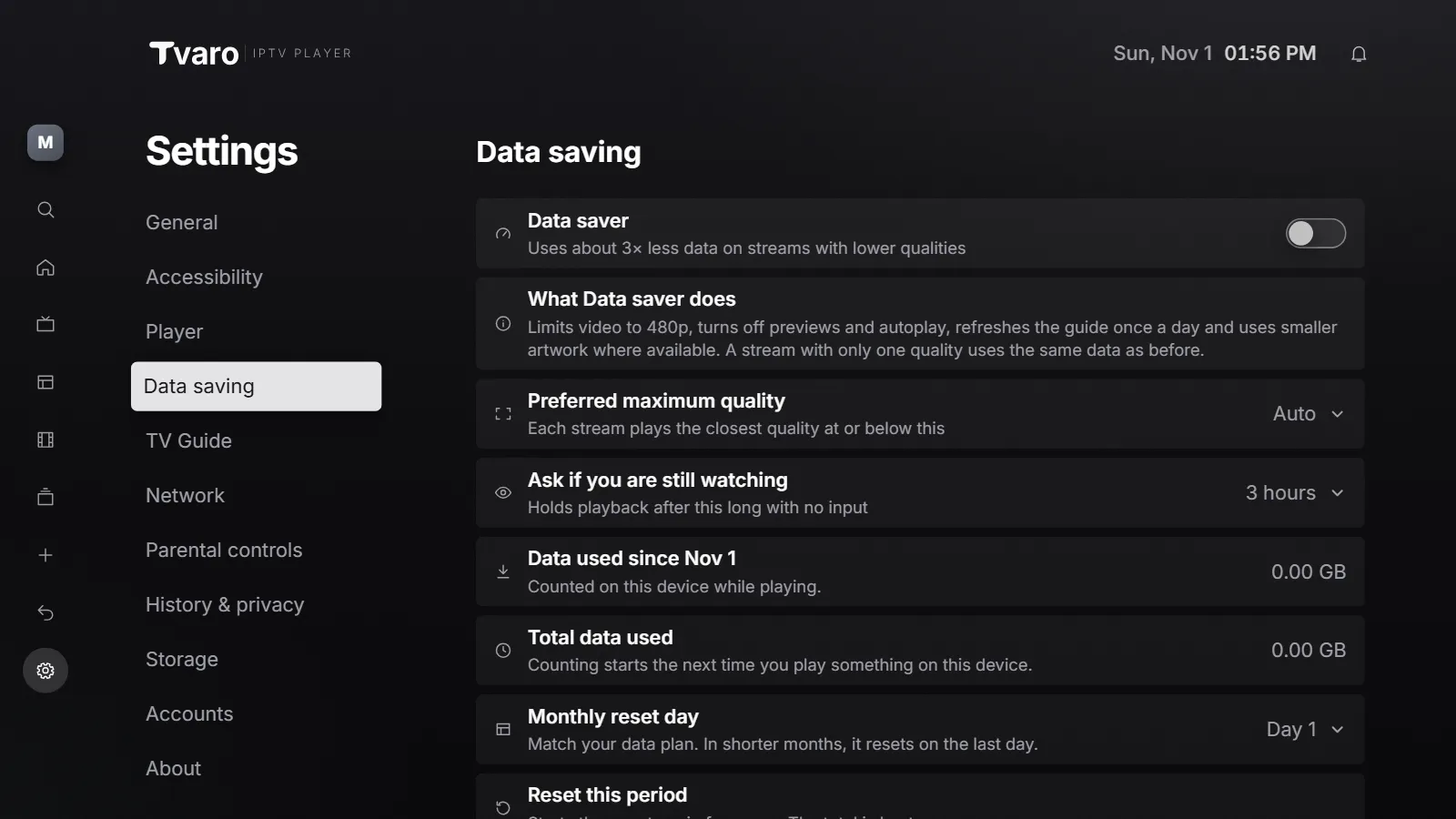
Data saving helps when your internet plan is limited. Open Settings › Data saving.
| Option | Choices | What it does |
|---|---|---|
| Data saver | Off (default) or on | Uses about 3× less data on streams that offer lower qualities. |
| Preferred maximum quality | Auto (default), 4K, 1440p, 1080p, 720p, 576p, 480p, 360p, 240p | Each stream plays the closest quality at or below this. |
| Ask if you are still watching | Off, 1, 2, 3 (default), 4 or 6 hours | Holds playback after this long with no input, and asks Are you still watching? before it continues. |
| Data used since | — | How much data Tvaro used on this device since the start of the current period. |
| Total since | — | Everything counted on this device since the date shown. |
| Monthly reset day | Day 1 (default) to the end of the month | Match your data plan. In shorter months, the count resets on the last day. |
| Reset this period | — | Starts the count again from now. The total is kept. |
| Keep playing when minimized | Off (default) or on | Desktop app only. When off, downloading stops while the window is minimized. |
What Data saver does: it limits video to 480p, turns off previews and autoplay, refreshes the guide once a day and uses smaller artwork where available. A stream that comes in only one quality uses the same data as before.
On Android phones and tablets
Instead of one Data saver switch, you get two, and the top row shows which network you are on now:
- Data saver on mobile data: on by default.
- Data saver on Wi-Fi: off by default.
Devices
The data count isn’t shown on Samsung or on iPhone and iPad.
TV Guide
| Option | Choices | What it does |
|---|---|---|
| Guide layout | Preview (default), Full grid, Split | How channels and programmes are arranged in the TV guide. |
| Auto-play preview | On (default) or off | Plays the focused channel in the preview window. Shown only with the Preview layout. |
| Guide time offset | −12:00 to +12:00, in 30-minute steps | Shifts programme times when your guide is in another time zone. Use Left and Right to adjust. |
| Update TV guide | Every 6 hours (default), Every 12 hours, Daily, Every 2 days, Every 3 days, Weekly | How often guide data refreshes on its own. |
| Keep guide data for | 1 day, 2 days (default), 3 days, 7 days | Older guide data is removed from your device. It must be at least as long as the update interval. |
| Refresh guide | — | Downloads programme data again now. The row shows when the guide was last updated. |
Network
This section shows whether Tvaro can reach the internet and your provider.
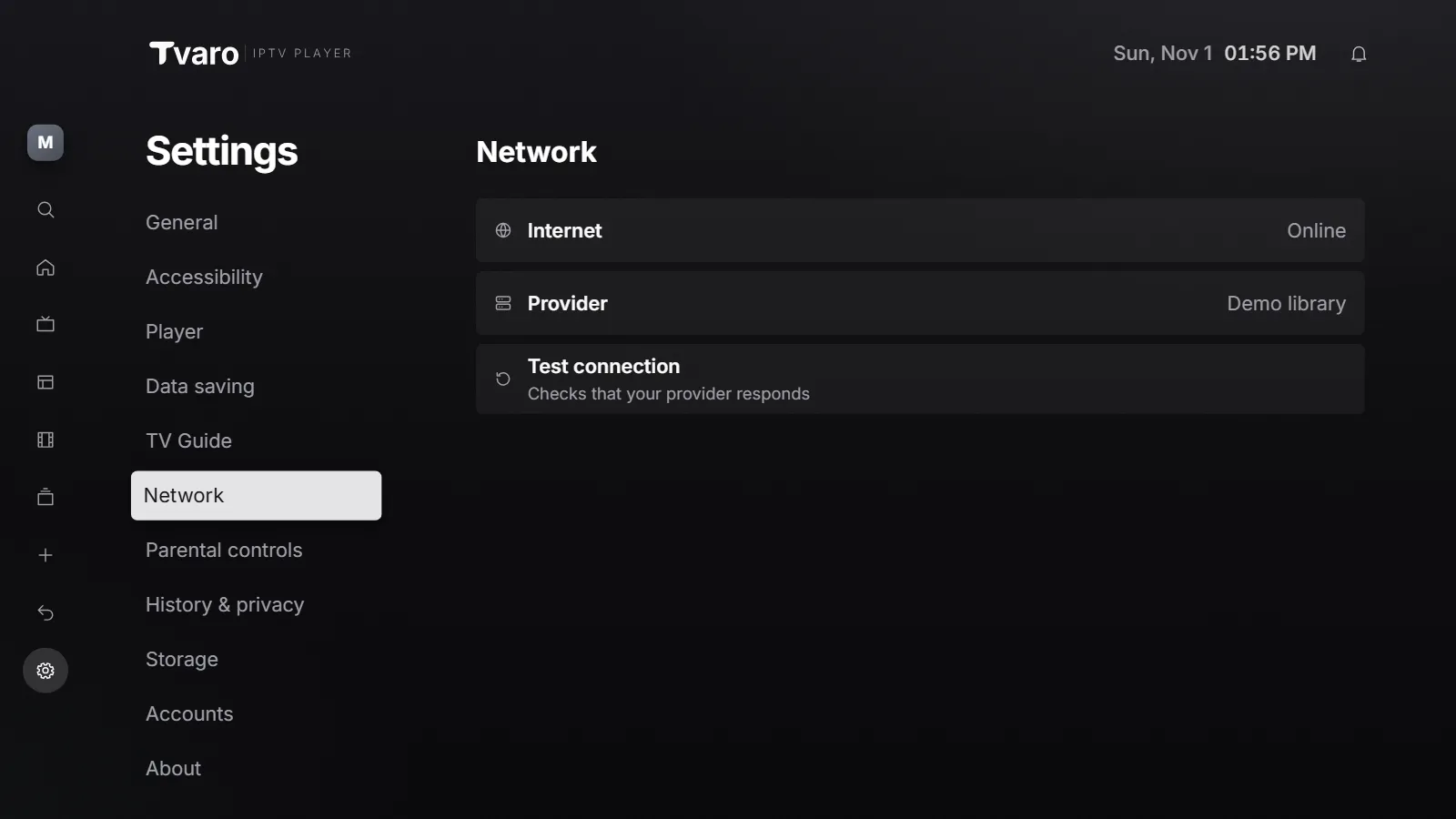
- Internet shows whether the device is Online, Offline or Unknown.
- Provider shows the active account and whether it is Xtream Codes or an M3U playlist.
- Test connection checks that your provider responds, and reports Provider reachable or Provider can’t be reached with the reason.
Use a proxy
Connection type decides how the player reaches your provider and streams: Direct (default) or Proxy (SOCKS5 or HTTP). It covers only the Tvaro player’s own traffic, not the rest of the device. It is in the desktop app, on Android and on iPhone and iPad, but not on Samsung or LG TVs.
- Select Connection type and choose Proxy (SOCKS5 or HTTP).
- Select Proxy address.
- Choose the Protocol, then fill in Server and Port, plus Username (optional) and Password (optional) if your proxy needs them. Pasting a full proxy address into Server fills in every field.
- Select Save. The row now shows your proxy.
To stop using the proxy, open Proxy address and select Turn off, or set Connection type back to Direct. Turn on Stop if it drops to pause playback when the proxy stops answering, instead of falling back to your normal connection.
Parental controls
Until you create a PIN, this section offers Set up PIN (a 4-digit PIN that protects adult content and locked categories) and Profile PIN. Once a PIN exists you also get:
| Option | What it does |
|---|---|
| Parental controls | Turns locks on or off. When off, your locks are kept but not applied. Asks for the PIN. |
| Change PIN | Replaces your PIN after you enter the current one. |
| Lock adult content | Categories and titles that look adult need the PIN. |
| Locked categories | One list each for Live TV, Movies and Series. Pick the categories to lock. |
| Profile PIN | Asks for a PIN before anyone can open this profile. Content locks still apply without it. |
| Lock now | Ends the current 30-minute unlock straight away. |
| Remove PIN | Turns off parental controls and clears all locks. |
The Parental controls page walks through each step.
History & privacy
- Save watch history records recently watched items and searches. Turn it off to pause: new activity isn’t saved, and existing history is kept.
- Watch history opens the full list of channels, movies and episodes you watched, where you can open or remove entries.
- Clear recently watched channels, Clear recently watched movies, Clear recently watched series and Clear recent searches each empty one list.
- Clear Continue Watching also resets resume points and watched marks.
- Clear all history clears all of the above. Favorites are kept.
Clearing applies to the current account and can’t be undone.
Storage
| Option | What it does |
|---|---|
| Settings and lists | Shows how much space your preferences, favorites and history use. |
| Clear guide cache | Removes saved guide data. It downloads again from your provider. |
| Clear playlist cache | Removes saved channels and titles. They download again the next time the app starts, which can take a while. |
| Clear artwork & details cache | Reloads movie and series details and retries artwork that failed. |
| Reset settings | Returns every setting to its default, including language. |
Reset settings keeps your accounts, favorites, history and parental controls. If you have set a parental PIN, you need it to reset.
Accounts
| Option | What it does |
|---|---|
| Manage accounts | Opens Accounts, where you add, edit, refresh, remove and switch accounts. |
| Subscription | For Xtream Codes accounts: Active, Trial, Expired or Disabled, with the time left. |
| Expiry date | The end date your provider reports, if any. |
| Connections | How many of your provider’s connections are in use, when the provider shares it. |
| Update playlists | How often your channels, movies and series refresh on their own (see below). |
| Update now | Refreshes your playlists straight away and shows when the last update ran. |
| Switch profile | Add, edit or change who is watching. |
| Exit demo | Shown in the demo only. Leaves the demo library and clears what you saved in it. |
Playlist and guide update schedules
Your channels, movies, series and guide data refresh on their own, on separate schedules:
| What | Setting | Choices | Default |
|---|---|---|---|
| Playlists | Settings › Accounts › Update playlists | Off, Every 6 hours, Every 12 hours, Daily, Every 2 days, Every 3 days, Weekly | Daily |
| TV guide | Settings › TV Guide › Update TV guide | Every 6 hours, Every 12 hours, Daily, Every 2 days, Every 3 days, Weekly | Every 6 hours |
These updates run while the app is open, or at the next launch if one was due. They never start during playback, and if one fails, Tvaro tries again later. While a refresh runs, Tvaro keeps showing your saved lists, so you can keep watching. To refresh right now, select Update now here or Refresh guide in TV Guide.
About
- App and Version show the app name and the version you have.
- Check for updates and Update automatically manage updates in the desktop app. The Install and update page explains how every device stays up to date.
- Platform shows the device type and system details.
- Device code identifies this device. Give it to support when they ask; select it to copy it where your device allows.
- Troubleshooter finds and fixes common playback, sign-in and guide problems. The Troubleshooting page starts there.
- Privacy policy and Terms of use open the full documents.