Docs menu
Getting started
Set up Tvaro IPTV Player for the first time: try the demo, then add your Xtream Codes login, M3U playlist or playlist file step by step.
Tvaro IPTV Player plays the IPTV subscription you already have. This page takes you from the first launch to watching your first channel.
Note
Tvaro doesn’t provide any channels, playlists or subscriptions. You need an Xtream Codes login, an M3U playlist link or a playlist file from a provider you are authorised to use.
Install Tvaro on your device
Tvaro runs on computers, Android TVs, Fire TV, Android phones and tablets, and Samsung and LG TVs. Pick your device to see its steps.
| Device | How to install |
|---|---|
| Windows, macOS and Linux | Download and run the installer |
| Android TV and Google TV | Install with the Downloader app |
| Fire TV | Install with the Downloader app |
| Android phones and tablets | Install the APK |
| Samsung and LG | Install with Tvaro TV Manager |
First launch
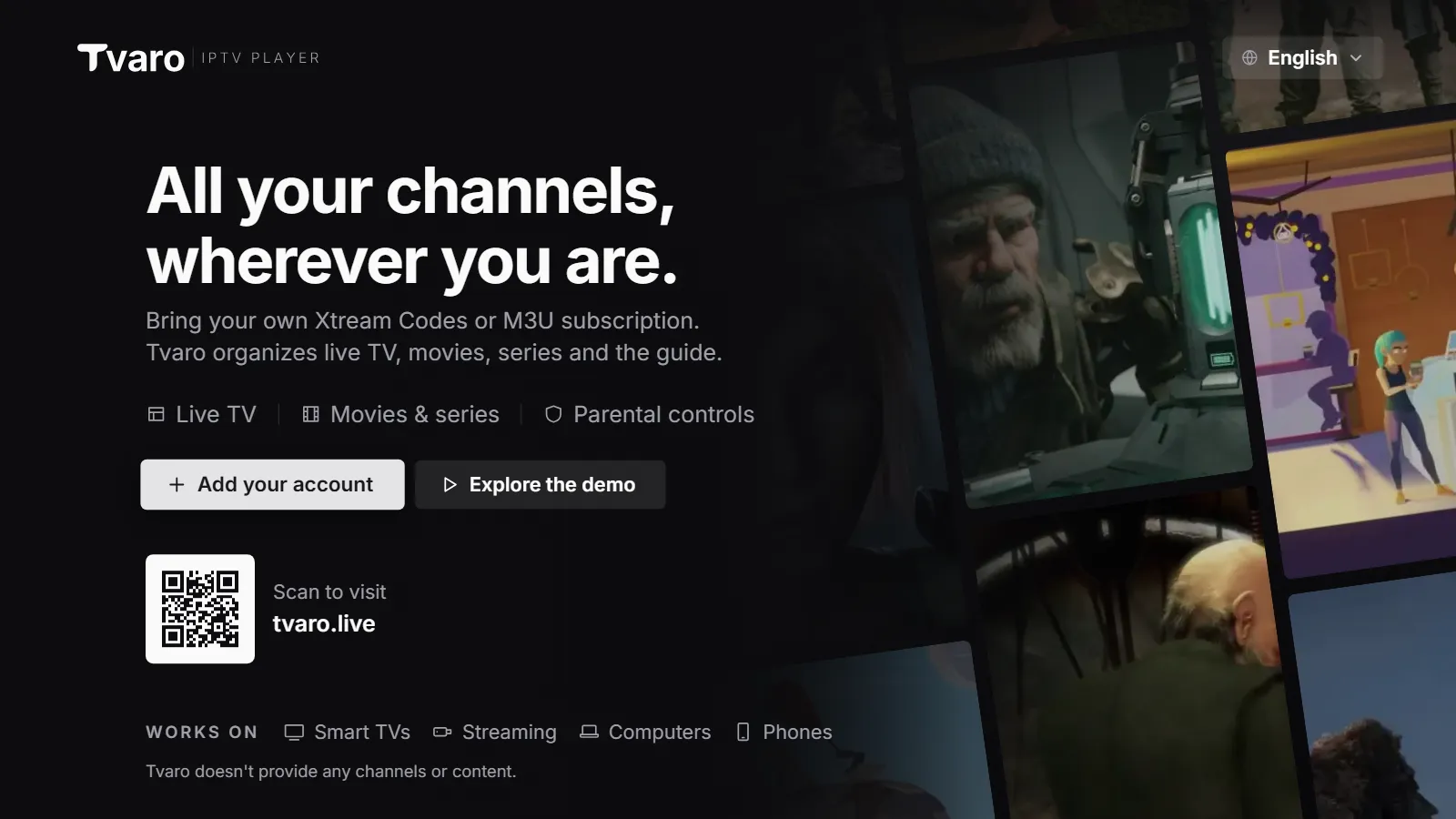
The first time you open Tvaro you see the welcome screen.
- Choose your language from the menu in the top corner. English and العربية are available, and Arabic switches the whole app to right-to-left.
- Select Add your account to connect your subscription, or Explore the demo to look around first.
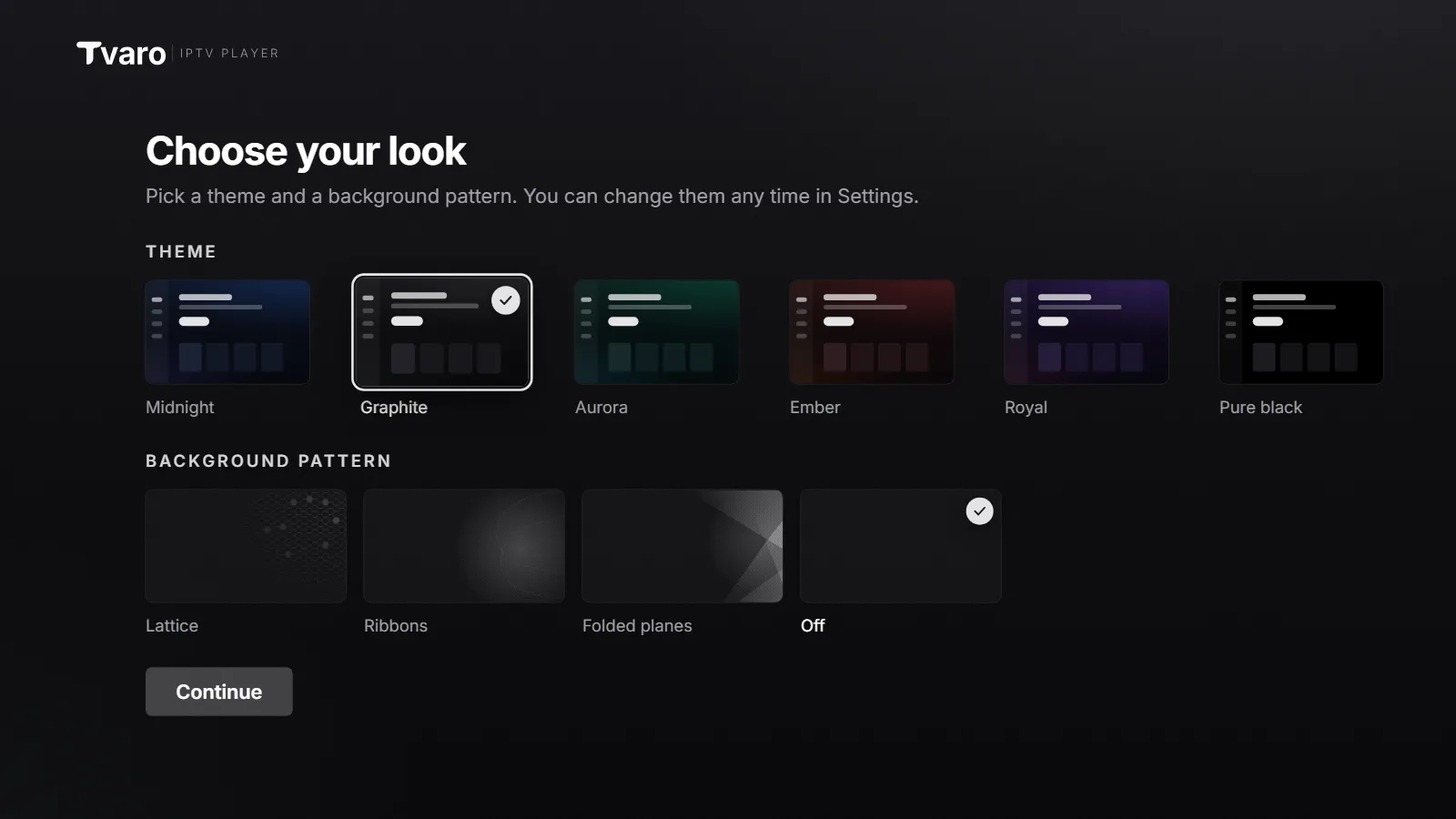
- The first time you pick either one, Choose your look opens. Pick a theme and a background pattern, then select Continue. You can change both later in Appearance.
Explore the demo
The demo loads a small built-in library of channels, a TV guide, movies and series, so you can try every screen without a subscription. While it runs, a banner at the top says You’re exploring demo content.
The demo ends as soon as you add a real account. You can also leave it from Settings › Accounts › Exit demo. Favorites, watch history and progress from the demo are then cleared.
Choose how to add your account
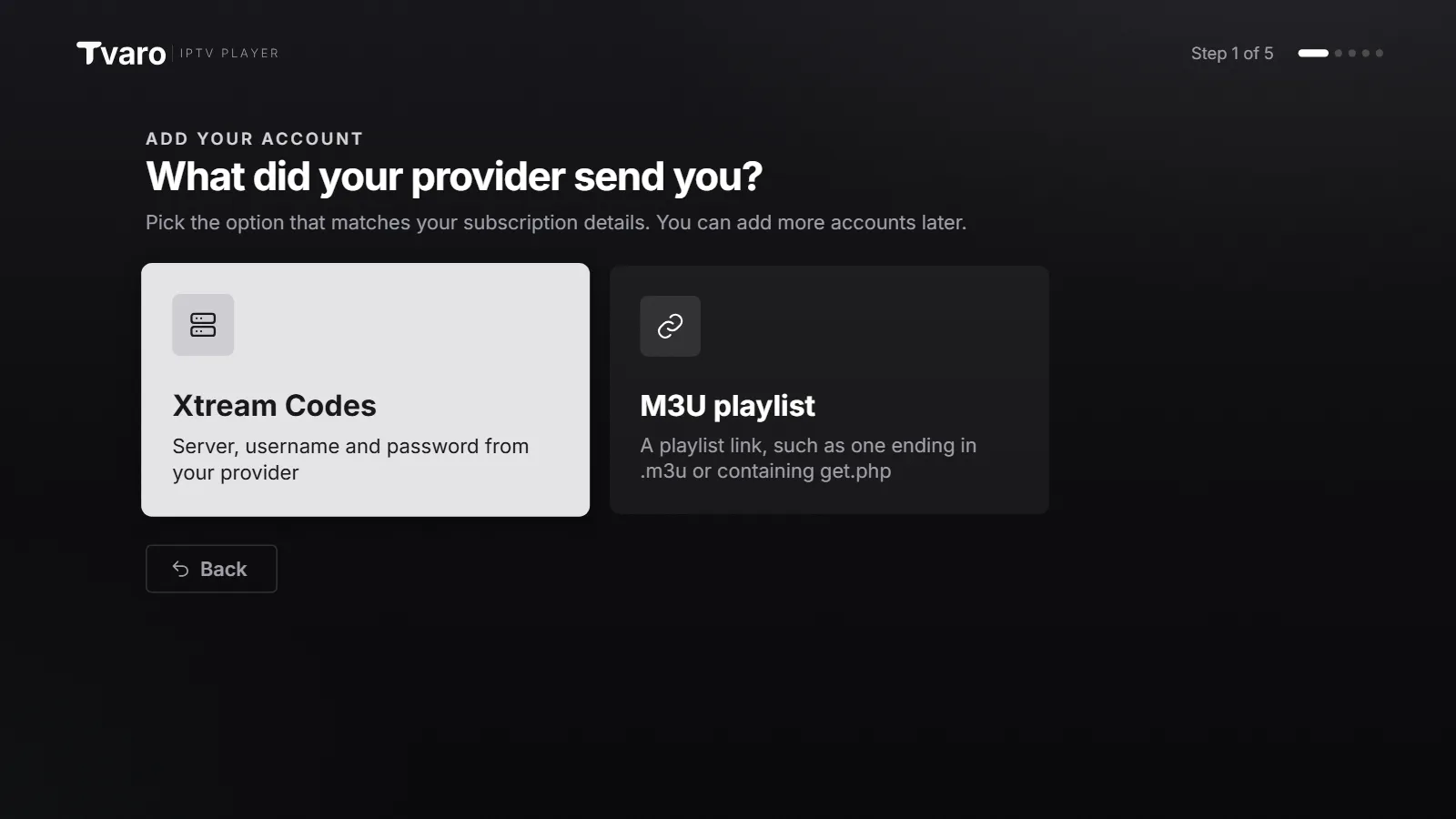
After Add your account, the app asks What did your provider send you? Pick the option that matches what you have.
On Samsung, LG, Android TV and Fire TV, this step starts on Sign in with your phone, so you can send your account from your phone instead of typing. Select Use the remote instead to type here.
Add an Xtream Codes account
Choose Xtream Codes, then fill in one detail per step.
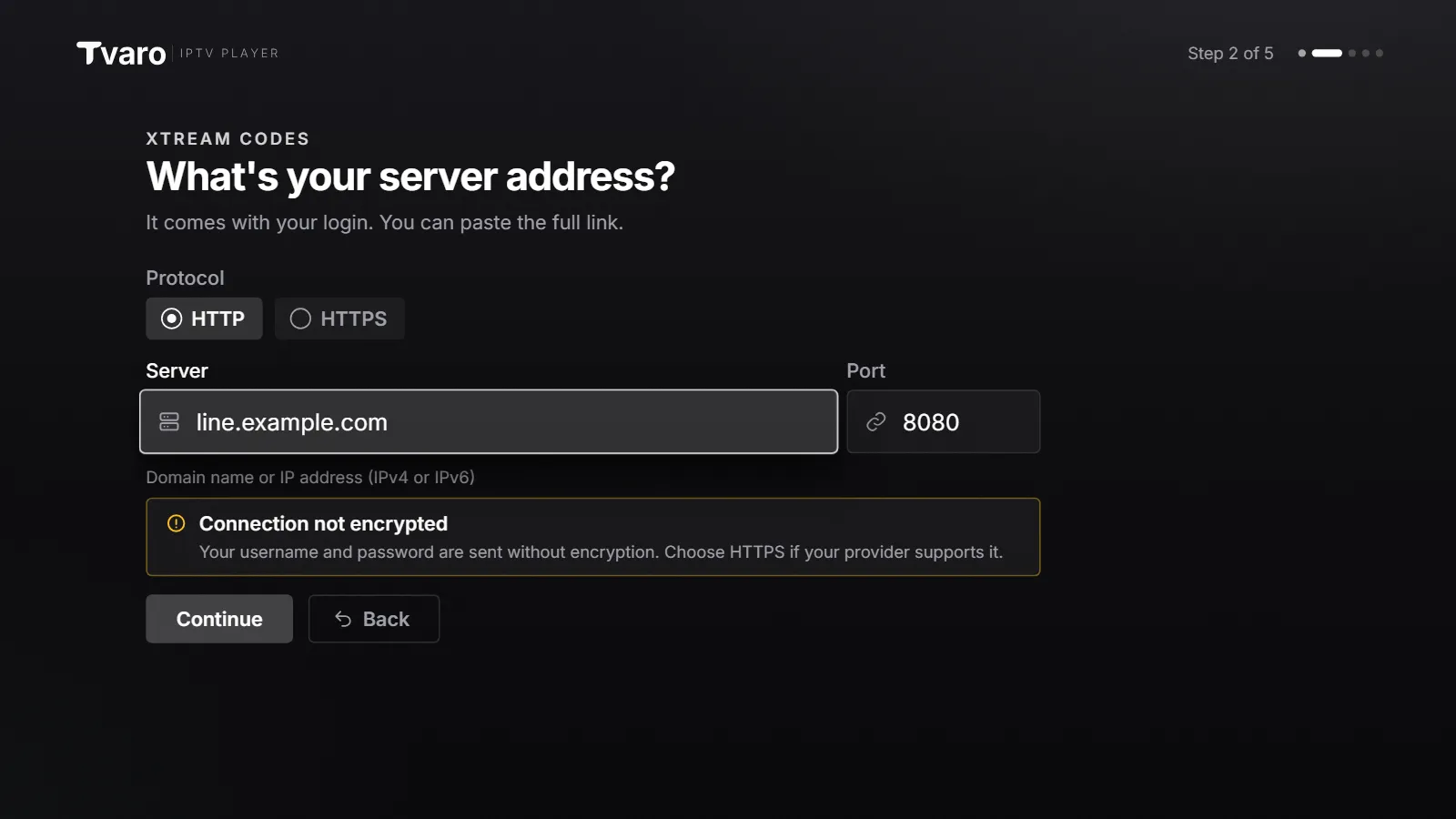
- What’s your server address? Enter it as your provider wrote it, for example
http://line.example.com:8080. You can paste the full link. - What’s your username? Enter it exactly as your provider wrote it. Capital letters matter.
- And your password? It’s saved only on this device.
- Name this account (optional). A short name helps you tell accounts apart.
- Select Connect.
Add an M3U playlist
Choose M3U playlist, then fill in each step.
- What’s your playlist link? Enter the M3U link from your provider. It usually ends in .m3u or .m3u8, or contains get.php.
- Add a TV guide link? This step is optional. Enter one or more XMLTV guide links separated by commas, or select Skip if your playlist already includes a guide.
- Name this account (optional), then select Connect.
Advanced options
On the name step, Advanced options shows two optional fields: User-Agent and Referer. Fill them in only if your provider asks you to. They apply to this account’s playlist and playback on this device. Windows, macOS, Linux and Android send both, Samsung sends only the User-Agent, and LG sends neither.
Add a playlist from a file
If your provider sent you an .m3u file instead of a link, Tvaro can keep its own copy, so it keeps working even if the file moves.
- Choose M3U playlist.
- Choose File instead of Link. On a Samsung TV, choose USB drive and plug in the drive with your file.
- Select Choose file and pick the .m3u file your provider sent you.
- Name this account (optional), then select Connect.
To get your provider’s latest channels later, open the account in Settings › Accounts and select Replace file.
Devices
Playlist files work on Windows, macOS, Linux and Android phones and tablets, and from a USB drive on Samsung. On LG, Android TV and Fire TV, send the file from your phone instead.
Connecting and finishing
Setting up your library shows each stage as it happens, from connecting to your provider to preparing movies and series. Large playlists can take a minute. Select Cancel to stop.
If something goes wrong, the app explains the problem and offers Retry or Edit details. If your provider’s address starts with http://, the app notes that the connection isn’t encrypted. It still works, but ask your provider whether an https:// address is available.
When it’s done, You’re all set shows how many channels, movies and series were found, plus the expiry date when your provider shares one. Select Start watching to open Home, or Add another account.
Use several accounts
You can keep more than one subscription in Tvaro and switch between them.
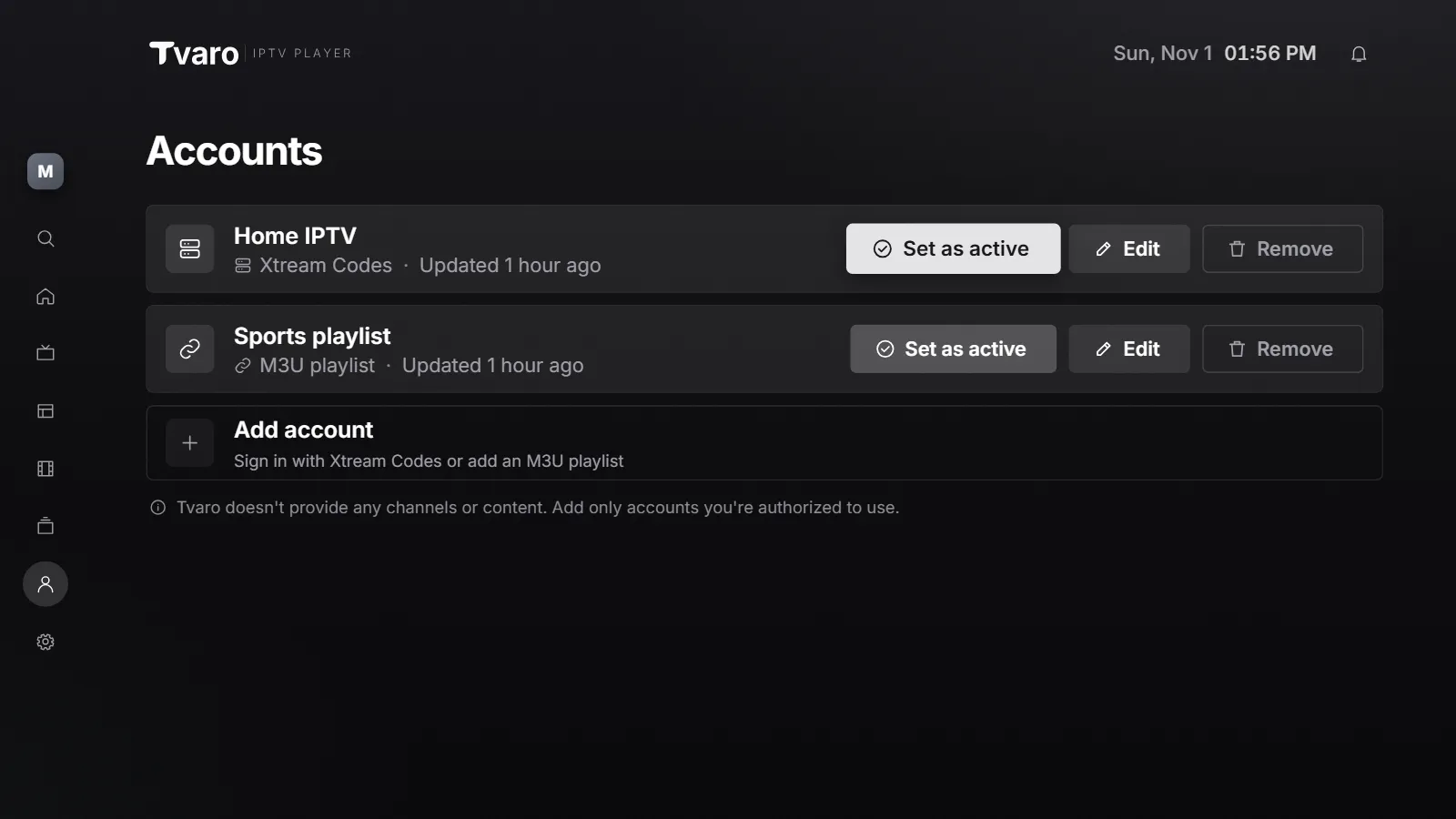
- Open Settings › Accounts and select Add account.
- Add the account as described above.
- To switch, select an account in Settings › Accounts, then Set as active.