Docs menu
Troubleshooting
Fix common Tvaro IPTV Player problems with the Troubleshooter, from connection and login errors to streams that won't play and missing guide data.
Most problems come from the internet connection, the provider, or a setting that needs a small change. Start with the Troubleshooter in Settings › About, or find the message you see below and follow the steps.
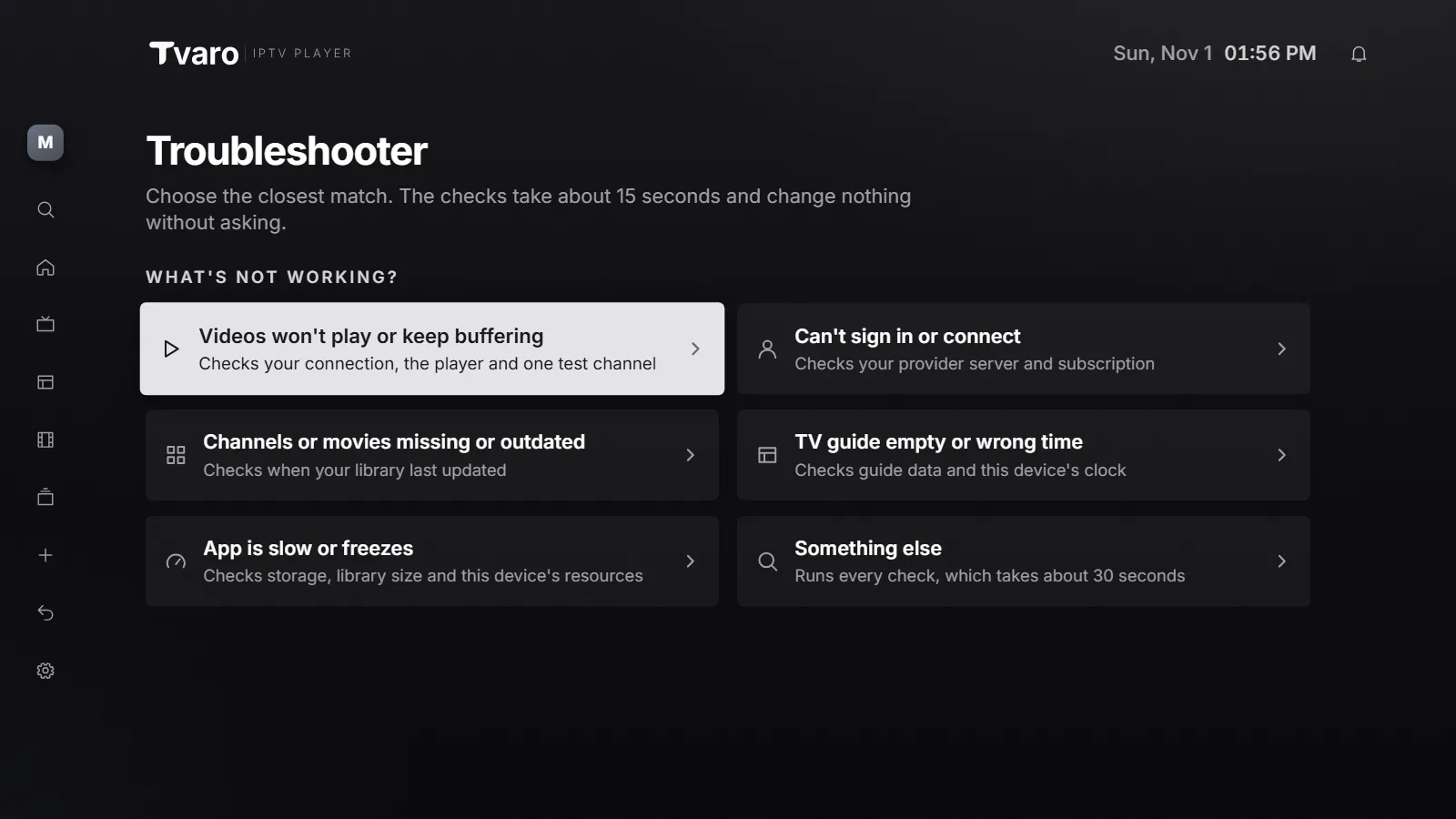
Run the Troubleshooter
The Troubleshooter tests your connection, account, player and guide in about 15 seconds, and changes nothing without asking.
- Open Settings › About and select Troubleshooter. Error screens and the player also offer Troubleshoot.
- Under What’s not working?, choose the closest match, such as Videos won’t play or keep buffering or TV guide empty or wrong time.
- Wait for the checks to finish, then follow the fix shown for each thing to look at.
- If the problem continues, select Send a report so support can look into it.
If you contact support, they may ask for the Device code shown in Settings › About. Select it to copy it.
No internet connection
When your device goes offline, Tvaro shows a full-screen No internet connection page and picks up where you left off as soon as the connection is back.
- It retries on its own: after 5, 10 and 20 seconds, then every 30 seconds. A countdown shows Retrying automatically in the next few seconds.
- Select Retry now to check straight away.
- Under Things to try: check the cable or Wi-Fi, restart your router (unplug it for 30 seconds), and check your device’s network settings.
- The page also shows when you were last online, and can open Diagnostics.
Login and subscription problems
When your library can’t load, Tvaro explains why and offers the next step.
| Message | What it means | What to do |
|---|---|---|
| Your provider refused the login | The username or password was not accepted. | Choose Edit account and check your login exactly as your provider wrote it. |
| Enter your login again | Tvaro couldn’t read the saved login for this account. | Choose Edit account and enter it again. |
| Your subscription has expired | Your provider reports the subscription as ended. | Renew it with your provider, or choose Switch account. |
| Your account is disabled | Your provider has disabled or banned the account. | Contact your provider, or choose Switch account. |
| Can’t reach your provider | The provider didn’t answer or sent something unexpected. | Choose Retry, then try Settings › Network › Test connection. |
Some messages also show an error code. Quote it if you contact your provider or Tvaro.
A TV won’t sign in from your phone
Make sure the TV still shows Sign in with your phone, and type the code exactly as it appears. A code works once and only for a short time. When it expires, the TV shows a new one by itself. Sign in on a TV with your phone covers every message.
The Expired badge and your clock
Only your provider’s own status can block an account. If the expiry date has passed but the provider still reports the account as active, Tvaro keeps playing. The account just shows an Expired badge, and a reminder suggests checking your device’s date and time.
That’s because the badge is worked out from your device’s clock. If the date or time is wrong, the badge can be wrong too. Set your computer’s date, time and time zone to update automatically.
Tvaro also tells you once a day when a subscription ends within 7 days. You can see the status and end date in Settings › Accounts.
A stream won’t play
If the player shows Can’t play this channel, read the reason under it, then:
- Try another channel or title. If only one fails, the problem is usually that stream at your provider.
- Check with your provider. Messages like “Your provider refused access to this channel” or “This channel is not available right now” come from the provider’s side. Settings › Accounts › Connections shows how many of your connections are in use, when your provider shares it.
- Check the player options. Make sure Reconnect automatically is on in Settings › Player. In the player, Options lets you change picture size and audio or subtitle tracks, and Stream information shows the format and codecs.
A message that the stream uses a format the device cannot play means that stream can’t be played on this device.
Custom User-Agent or Referer
If your provider asked you to set a User-Agent or Referer, add them under Advanced options when you add or edit the account. Windows, macOS, Linux and Android send both. Samsung sends only the User-Agent, and LG sends neither. When this device can’t send what the playlist asks for, the player says so.
Multiview says your connections are in use
Each tile in Multiview uses one connection to your provider. If a tile says Your provider plan allows 2 connections at once, and both are in use, close another tile or stop watching on another device.
Videos don’t play on Linux
Some Linux systems need extra components to play video. When Install video support appears, select Install and enter your password when your system asks. Tvaro restarts on its own when the install is done.
Your device is low on storage
If Tvaro says Your device is low on storage, free up some space so it can save your changes. Settings › Storage shows what Tvaro uses and lets you clear its caches.
No guide data
If the player shows No guide information or the guide is empty:
- Add guide links. For M3U playlists, open Accounts, choose Edit and add your provider’s XMLTV guide links. You can add up to 8, separated by commas. Xtream Codes accounts get their guide from the provider.
- Fix shifted times. If programmes are listed at the wrong time, set Settings › TV Guide › Guide time offset.
- Refresh. Select Settings › TV Guide › Refresh guide. If that doesn’t help, use Settings › Storage › Clear guide cache.
Missing channel logos
Logos and artwork come from your provider. To retry images that didn’t load, use Settings › Storage › Clear artwork & details cache, and refresh your playlist with Settings › Accounts › Update now. If your provider doesn’t supply a logo, Tvaro can’t show one.
Diagnostics
Open Settings › About › Diagnostics. It shows:
- Device: app version, app files, platform, model, firmware, screen and network status.
- Library: provider type, channel, movie and series counts, and the last sync.
Diagnostics never shows your credentials. Use Refresh to update it.
Send logs to Tvaro
If a problem keeps coming back, you can send a report so we can look into it:
- Open Settings › About › Diagnostics.
- Under Report a problem, describe what went wrong in Note (optional) if you like.
- Select Send logs to Tvaro.
- A Support code appears. Quote it when you contact support.
Nothing is sent until you select Send logs to Tvaro, and reports never include passwords or playlist links. The Privacy and your data page lists exactly what a report contains.
If sending doesn’t work, the message tells you why: Tvaro couldn’t be reached (check your internet connection), too many reports were sent from your network (try again later), or sending failed (try again in a moment).
Error screens
Something went wrong on this screen
If one screen fails, Tvaro shows this message while the menu keeps working. Choose Retry to load the screen again, or Home to leave it.
Tvaro couldn’t start
If the app can’t open at all, a simple page in English and Arabic appears instead of a frozen start screen. Choose Restart, which usually fixes it.
Warning
The same page offers Reset app data. It signs you out and removes saved settings from this device, so use it only if restarting doesn’t help.