Docs menu
TV guide
Use the Tvaro IPTV Player TV guide: pick a layout, switch days, filter and search channels, replay catch-up programmes and set reminders.
The TV Guide shows what’s on across your channels, now and over the coming days. From here you can tune in, replay past programmes on catch-up channels, and set reminders for shows you don’t want to miss.
Layouts
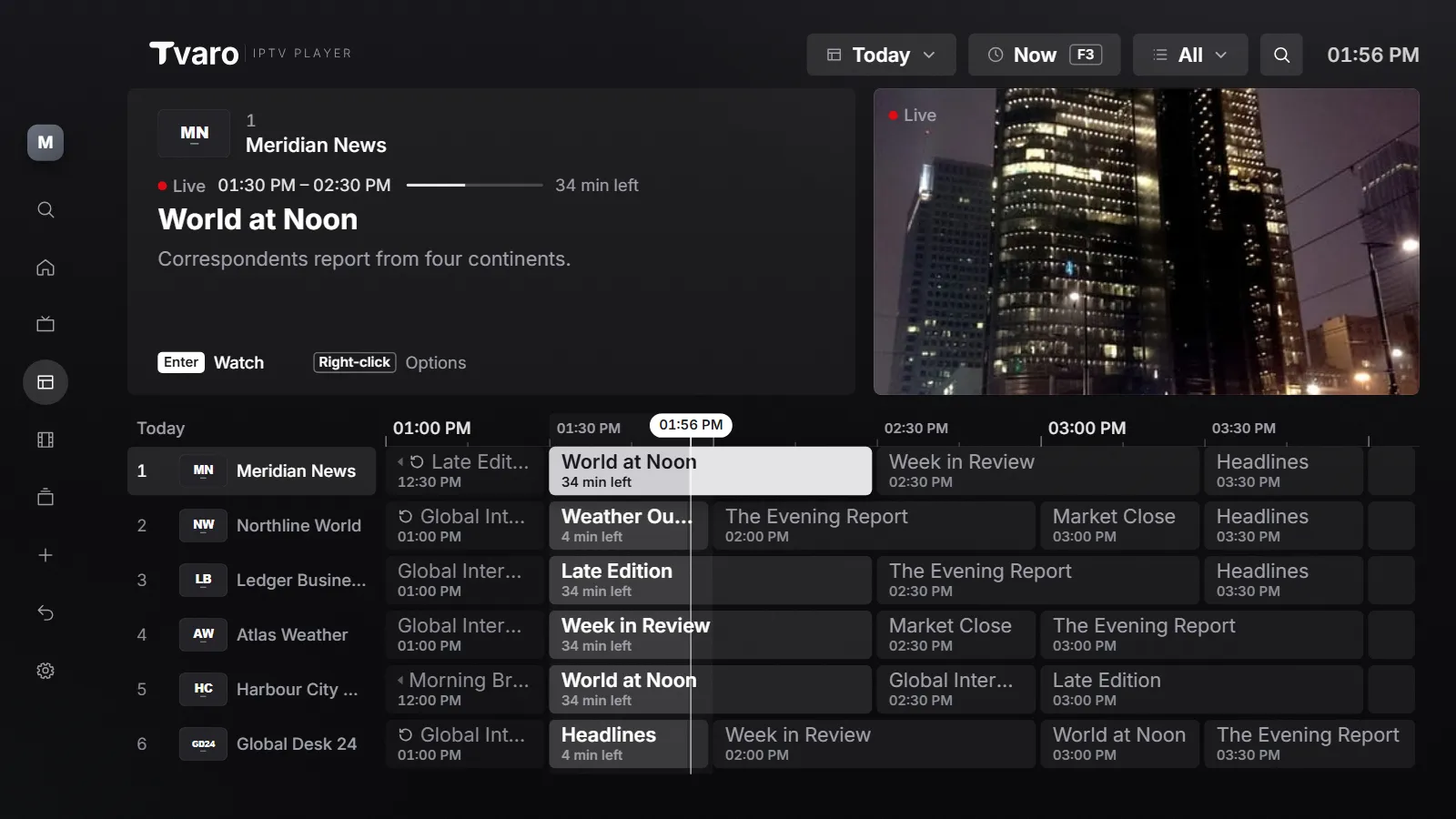
The guide comes in three layouts. Choose one in Settings › TV Guide › Guide layout. Each profile keeps its own choice.
| Layout | What you see |
|---|---|
| Preview (default) | A live mini player of the focused channel, with the programme’s details, above a compact grid |
| Full grid | The classic guide grid across the whole screen |
| Split | A channel list beside a vertical timeline of the selected channel’s programmes |
In Preview, the mini player starts on its own as you move between channels. If you’d rather start it yourself, turn off Auto-play preview in Settings › TV Guide. The guide then shows Press Play to preview, and Play (Space on a keyboard) starts it.
Moving around
- Use the arrows to move between channels and programmes.
- Channel up / down (Page Up / Page Down on a keyboard) jumps a page of channels at a time.
- A now marker on the time bar shows the current time, and programmes that are on now show how many minutes are left.
Switching days
Select the day button at the top (it reads Today at first) and pick another day. The guide goes back as far as your channels’ catch-up window allows and two days ahead.
Filtering channels
Select the category button next to it to show All channels, only your Favorites, your Recent channels, or one of your provider’s categories. Hidden channels never appear in the guide.
Watching from the guide
Press OK on a programme. What happens depends on the programme:
- Watch: a programme that’s on now opens the channel live.
- Catch-up: a past programme on a channel with catch-up plays from its start.
- Details: any other programme opens its details.
The hint at the top of the guide always shows which of these OK will do.
Programme details
Hold OK (or right-click) on any programme to open its details, with the time, description and the actions that apply: Watch live, Play from start for past catch-up programmes, Remind me for upcoming ones, and Close.
Catch-up playback
Catch-up programmes play in the full player, so you can pause and seek through them like a movie. Past programmes you can replay are marked in the grid.
Reminders
- Open the details of an upcoming programme.
- Select Remind me. The programme is marked Reminder set in the guide.
- About a minute before it starts, and again when it starts, a prompt appears. Select Watch to switch to the channel, or Dismiss.
To remove a reminder, open the programme’s details and select Cancel reminder. You can have up to 50 reminders at a time.
Note
Reminders only appear while Tvaro is open.
Searching the guide
- Select the search button at the top of the guide, or press Search (S, / or Ctrl+F on a keyboard).
- Type a channel name, channel number or programme title. Programme titles are matched once you’ve typed at least two characters.
- The guide shows only the matches, with a Search: chip at the top. Press Back to clear the search.
Warning
Guide search only covers channel names and numbers, and the programmes already loaded for the rows on screen. It isn’t a search of the whole guide, so a show on a channel further down the list may not turn up.
Guide time offset
If programmes appear earlier or later than they really air, your provider’s guide is probably in another time zone. Go to Settings › TV Guide › Guide time offset and use Left and Right to adjust it in 30-minute steps, up to 12 hours either way.