Docs menu
Parental controls
Lock adult content and chosen categories in Tvaro behind a 4-digit PIN, unlock for 30 minutes when needed, and change or remove the PIN.
Parental controls put adult content and any categories you choose behind a 4-digit PIN. They are set per profile, so a child’s profile can be locked while yours stays open.
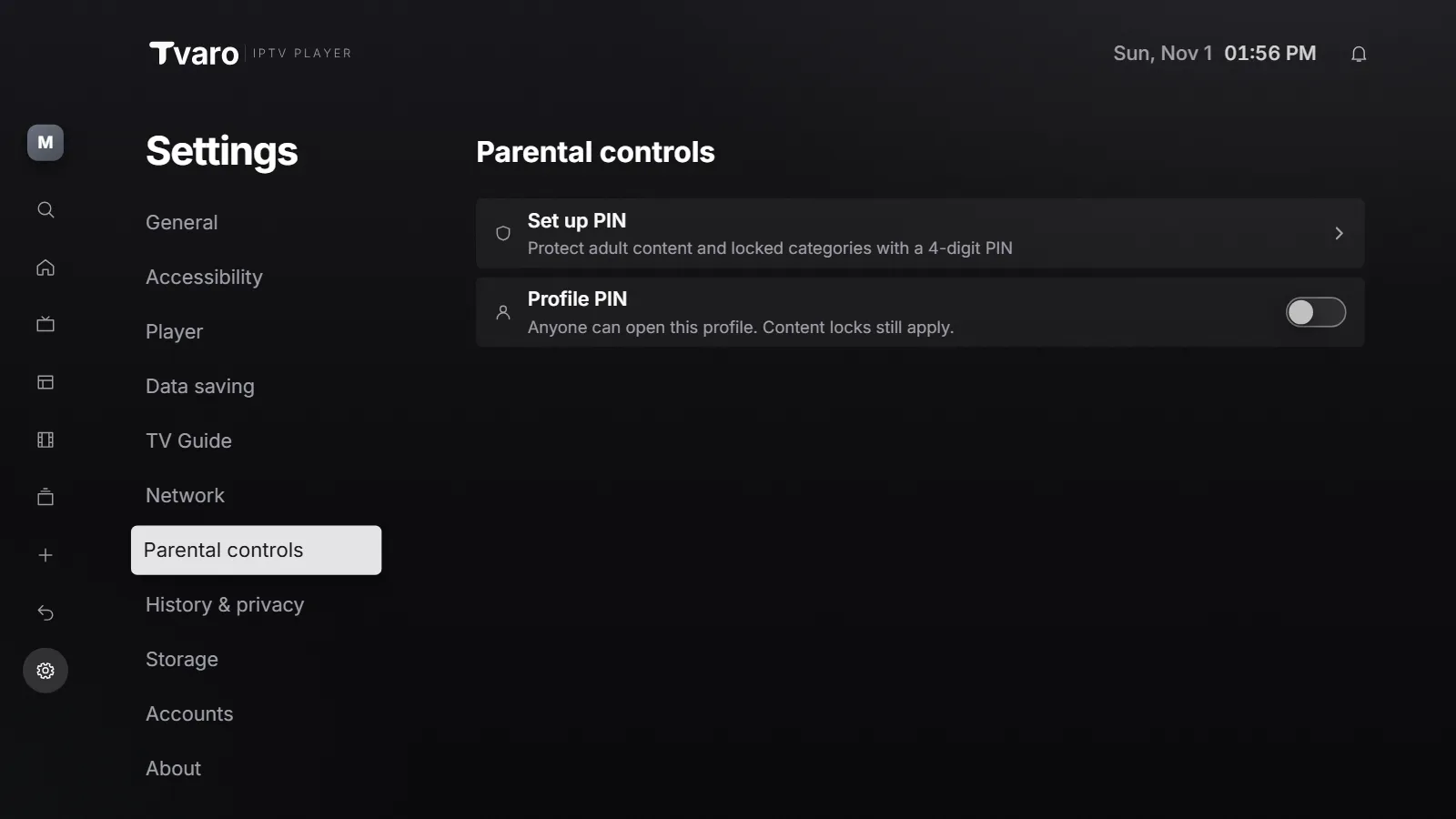
Set up a PIN
- Switch to the profile you want to protect.
- Open Settings › Parental controls and select Set up PIN.
- Choose a 4-digit PIN and enter it again to confirm.
Tvaro confirms with “PIN set. Parental controls are on.” Adult content is locked straight away, because Lock adult content is on by default.
What gets locked
Lock adult content covers categories and titles whose names look adult, for example names containing “adult”, “XXX” or “18+”, in English or Arabic.
You can also lock whole categories yourself. The section has one row per library type: Locked categories: Live TV, Locked categories: Movies and Locked categories: Series, each showing how many categories are locked. Open one and select a category to switch it between Locked and Unlocked.
Categories caught by the adult filter carry an Adult badge and stay locked while Lock adult content is on. To unlock one of them, turn that option off first.
Where locked items are hidden
Locked channels, movies and series are left out of Home, the TV guide, Search, Watch history and channel zapping. Locked categories still appear in the Live TV, Movies and Series lists, marked Locked. Opening one, or opening a locked details page or player, asks for the PIN.
Unlocking for 30 minutes
When Tvaro asks for the PIN, enter it on the number pad, or with the number keys on a remote or keyboard. All locked content for that profile then opens for 30 minutes.
Locked content locks again when:
- the 30 minutes are up,
- Tvaro goes to the background, or
- you select Lock now in Settings › Parental controls. While content is open, that row shows the minutes left.
After 5 wrong PINs in a row, Tvaro makes you wait before trying again. The wait starts at one minute and grows with further mistakes.
Turn off, change or remove the PIN
Once a PIN exists, Settings › Parental controls offers these rows:
| Row | What it does |
|---|---|
| Parental controls | Turns the locks on or off. When off, your locks are kept but not applied. |
| Change PIN | Asks for the current PIN, then the new one twice. |
| Lock adult content | Turns the adult filter on or off. |
| Locked categories | One row each for Live TV, Movies and Series. |
| Profile PIN | Locks the profile itself (see the Profiles page). |
| Lock now | Ends the 30-minute unlock straight away. |
| Remove PIN | Turns parental controls off and clears every category lock. |
Changing these settings asks for the PIN first; only Lock now works without it. Remove PIN also asks you to confirm.
Warning
Remove PIN cannot be undone. Your category locks are cleared, so you would need to choose them again after setting a new PIN.
Parental controls and profiles
- Each profile has its own PIN, locks and on/off setting.
- A profile added while parental controls are on for another profile starts with the same PIN and the same locks.
- When the main profile has parental controls on, its PIN also protects profile management and Accounts.
- Profile PIN is separate: it controls who can open a profile, while parental controls decide what that profile can watch.