Docs menu
Install and update
Install Tvaro IPTV Player on a computer, Android TV, Fire TV, an Android phone or a Samsung or LG TV, and keep it up to date.
Tvaro IPTV Player is free on every device it supports. Find your device below, follow its steps, and the app opens on its welcome screen, ready for your subscription.
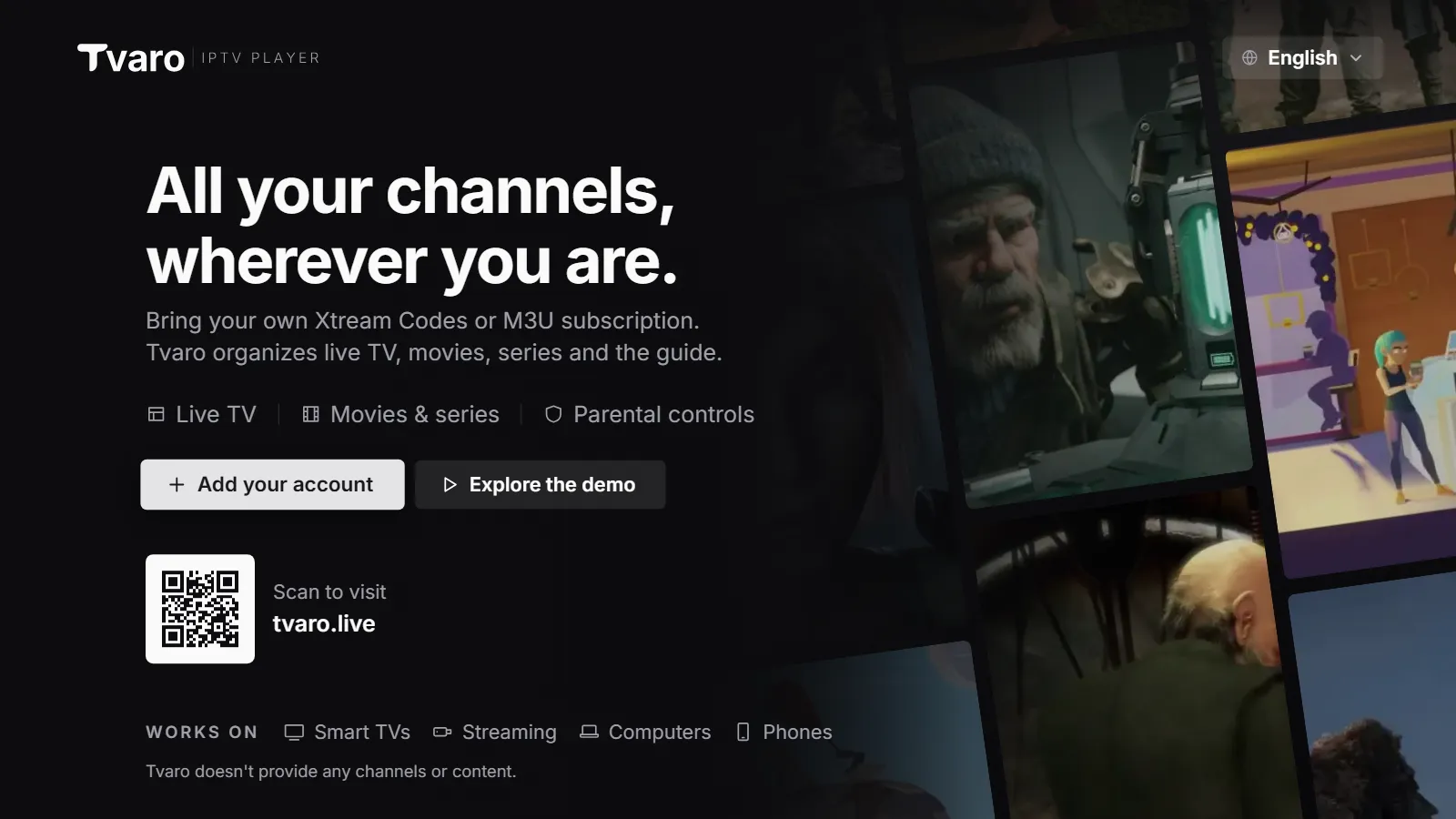
Windows, macOS and Linux
Download the installer for your computer from the Download page, then follow the steps for your system.
Windows
Needs Windows 10 or 11 (64-bit).
- Run the installer. It installs for your user account and doesn’t need admin rights.
- If Windows SmartScreen says it protected your PC, select More info, then Run anyway.
macOS
Needs a Mac with Apple Silicon (M1 or later) running macOS 11 Big Sur or later.
- Open the disk image and drag Tvaro IPTV Player to Applications.
- Open Tvaro IPTV Player from Applications. The app is verified by Apple, so it opens without a warning.
Linux
Needs a 64-bit distribution such as Ubuntu 22.04 or later, Debian 12 or a recent Fedora.
- On Debian and Ubuntu, install the .deb package. On Fedora and openSUSE, install the .rpm package. On any other distribution, make the AppImage executable and run it.
- If Install video support appears the first time you play something, select Install and enter your password when your system asks. Tvaro restarts on its own when the install is done.
sudo apt install ./Tvaro*.deb
sudo dnf install ./Tvaro*.rpm
chmod +x Tvaro*.AppImage && ./Tvaro*.AppImage
Android TV and Google TV
The free Downloader app installs Tvaro on your TV with a short code. Your TV needs Android 9 or later.
- Install Downloader from the Google Play Store on your TV.
- Open Downloader, enter the code 4407301 and select Go.
- When asked, open Settings, allow Downloader to install unknown apps, then go back.
- Select Install, then Open. Tvaro IPTV Player now appears with your other apps.
Fire TV
Fire TV installs Tvaro through the same Downloader code. Your Fire TV needs Fire OS 7 or later.
- On the Fire TV home screen, search for Downloader and install it.
- Open Settings › My Fire TV › Developer options › Install unknown apps and turn on Downloader.
- If you don’t see Developer options, open Settings › My Fire TV › About, press Select on your Fire TV’s name seven times, then go back.
- Open Downloader, enter the code 4407301 and select Go.
- When the download finishes, select Install, then Open.
Android phones and tablets
The same app runs on Android phones and tablets with Android 9 or later.
- Open tvaro.live/apk in your phone’s browser to download the app.
- Open the downloaded file from the notification or your Downloads folder.
- If Android asks, allow your browser to install unknown apps, then go back.
- Tap Install. If Google Play Protect warns you, tap More details, then Install anyway.
Samsung and LG TVs
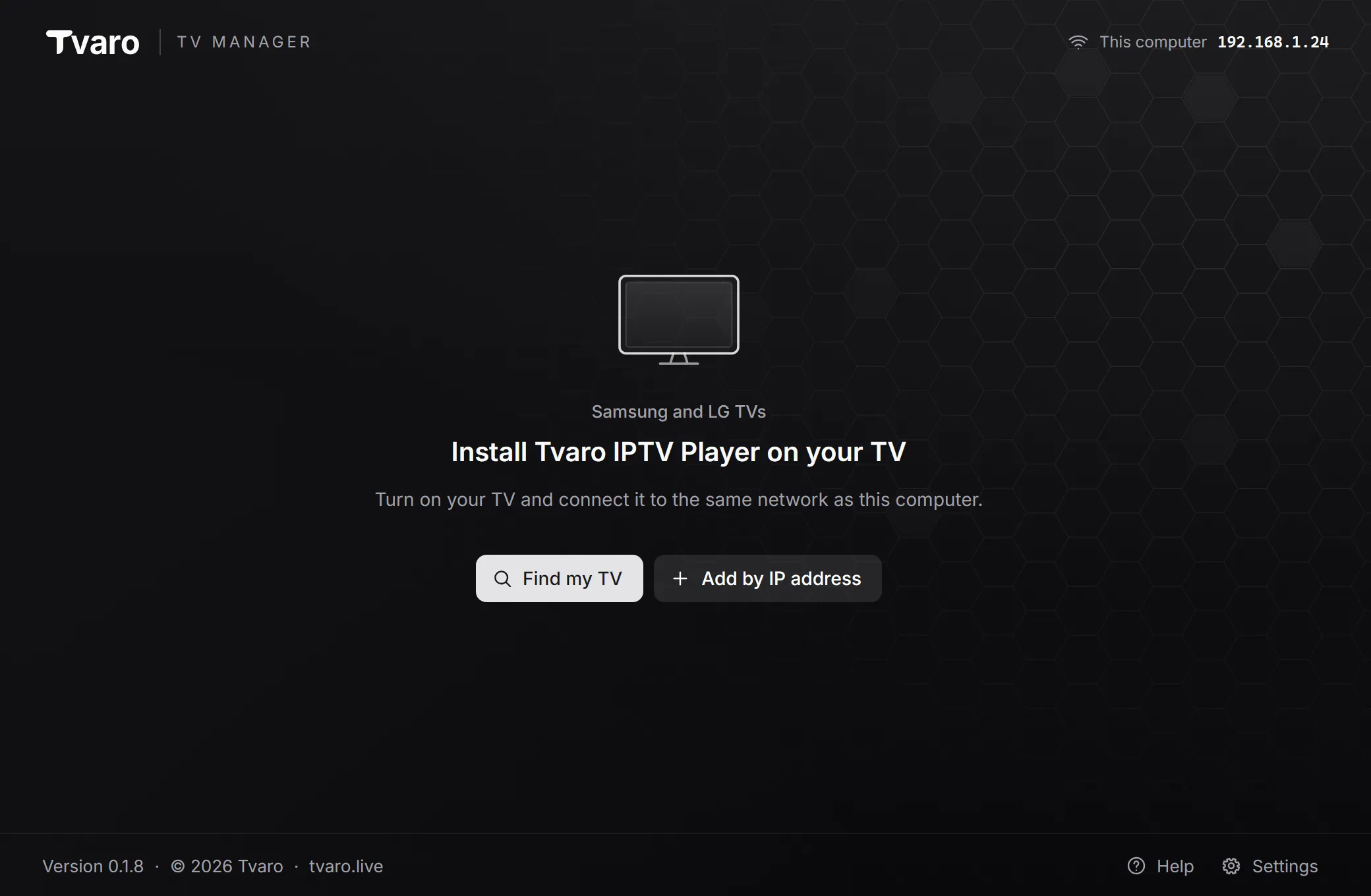
Samsung and LG TVs get Tvaro IPTV Player from Tvaro TV Manager, a free app for your computer or Android phone. Check your model on the TV compatibility page first.
- Turn on your TV and connect it to the same network as your computer or phone.
- Download Tvaro TV Manager from the Tvaro TV Manager page and open it.
- Select Find my TV. Your TV appears in the list once it answers. If it doesn’t, add it by its IP address.
- If your TV needs Developer Mode, follow the steps Tvaro TV Manager shows for your TV, then let it check again.
- Select Install and follow the progress. On a Samsung TV, sign in with your Samsung account once when asked.
- When the install finishes, open Tvaro IPTV Player on the TV and add your account.
Tip
Typing a login with a remote is slow. Once Tvaro is on your TV, you can sign it in from your phone instead.
Keep Tvaro up to date
Updates bring fixes and new features, and your profiles, accounts and settings stay as they are.
Windows, macOS and Linux
- When Tvaro IPTV Player shows that a new version is available, select Update now.
- Keep using the app while the update downloads.
- Select Restart to update to finish.
To check yourself, open Settings › About and select Check for updates.
Android TV, Fire TV, phones and tablets
- When a new version is available, select Update now.
- Select Install update, then confirm when Android asks.
You can also install the latest APK over the one you have.
Samsung and LG
Your TV updates the app by itself. If Update required appears, open Tvaro TV Manager on the same network, find your TV and select Update.
Playlists and the TV guide refresh on their own schedule. You can change it in Settings.