Docs menu
Search
Find channels, movies and series in Tvaro IPTV Player with global search or search inside Live TV, Movies and Series, in English or Arabic.
Tvaro has one search for your whole library and a quick search inside each section. Both use the same on-screen keyboard and the same forgiving matching, so you rarely need to type a full title.
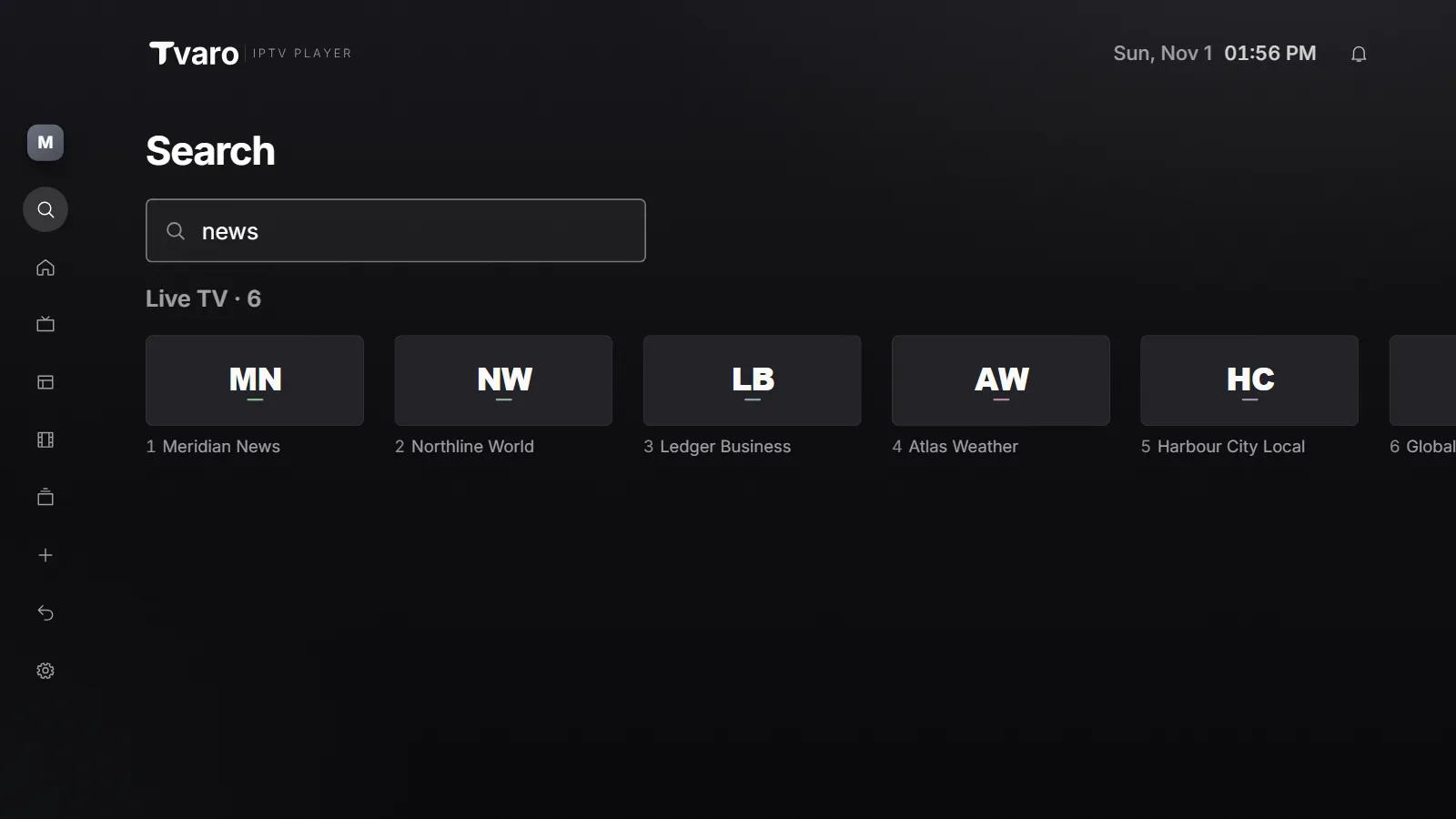
Search everything
- Select Search in the sidebar.
- Type part of a name, or a channel number.
- Results appear as you type, in three rows: Live TV, Movies and Series, with up to 30 results in each.
- Select a result. A channel starts playing; a movie or series opens its details page.
If nothing matches, the app shows No results for your search, with a hint to check the spelling or try fewer words. Hidden channels and content locked by parental controls never appear in results.
Search inside Live TV, Movies and Series
Each section can be searched on its own, without leaving the screen:
- In Live TV, Movies or Series, select the Search button at the top, or press Search on the remote (S, / or Ctrl+F on a keyboard).
- A keyboard panel opens beside the grid, and the grid filters as you type.
- Select Search on the keyboard to jump to the results.
- Press Back to close the panel.
This search looks only inside the category you’re in, and respects any filters you’ve applied. To search the whole section, choose All first.
The on-screen keyboard
On a TV remote you type with the on-screen keyboard. On a computer you can also type with your keyboard or paste text.
- عربي switches the keyboard to Arabic letters, and EN switches back. The keyboard starts in the language the app is using.
- ?123 shows numbers and symbols, and ABC returns to letters.
- Space, Delete and Clear work as you’d expect.
- While you type in the main search, up to two suggestions appear on the keyboard, taken from your recent searches and the top results. Select one to use it.
How matching works
Search is designed to find what you mean even if you type it a little differently:
- Capital letters, accents and punctuation don’t matter.
- Arabic letter variants are treated as the same letter: أ, إ, آ and ا match each other, as do ى and ي, and ة and ه. Arabic vowel marks are ignored, and Arabic digits match Western digits.
- Each word matches from its beginning, so “bre” finds “Breaking News”.
- When you type several words, a result must match all of them.
- Small typos are forgiven in words of four letters or more.
- Channel numbers work too. A channel whose number matches exactly comes first, followed by exact titles, then titles that start with what you typed.
In libraries of up to 5,000 items per section, search also looks at category names and, for movies and series, the year and genre.
Recent searches
When the search field is empty, Recent searches lists the last eight things you searched for. Select one to run it again. A search is saved when you select Search on the keyboard or open a result.
To remove them all, select Clear recent searches and confirm. You can also clear them from Settings › History & privacy.
Note
Recent searches belong to the current profile. If Save watch history is turned off in Settings › History & privacy, new searches aren’t saved.