Docs menu
Movies and series
Open details pages, resume where you stopped, follow seasons with Up Next, skip intros, keep favorites and filter movies and series in Tvaro.
Movies and Series each have their own section in the sidebar. Tvaro remembers what you watched, so you can pick up where you left off and move through a series without hunting for the next episode.
Details pages
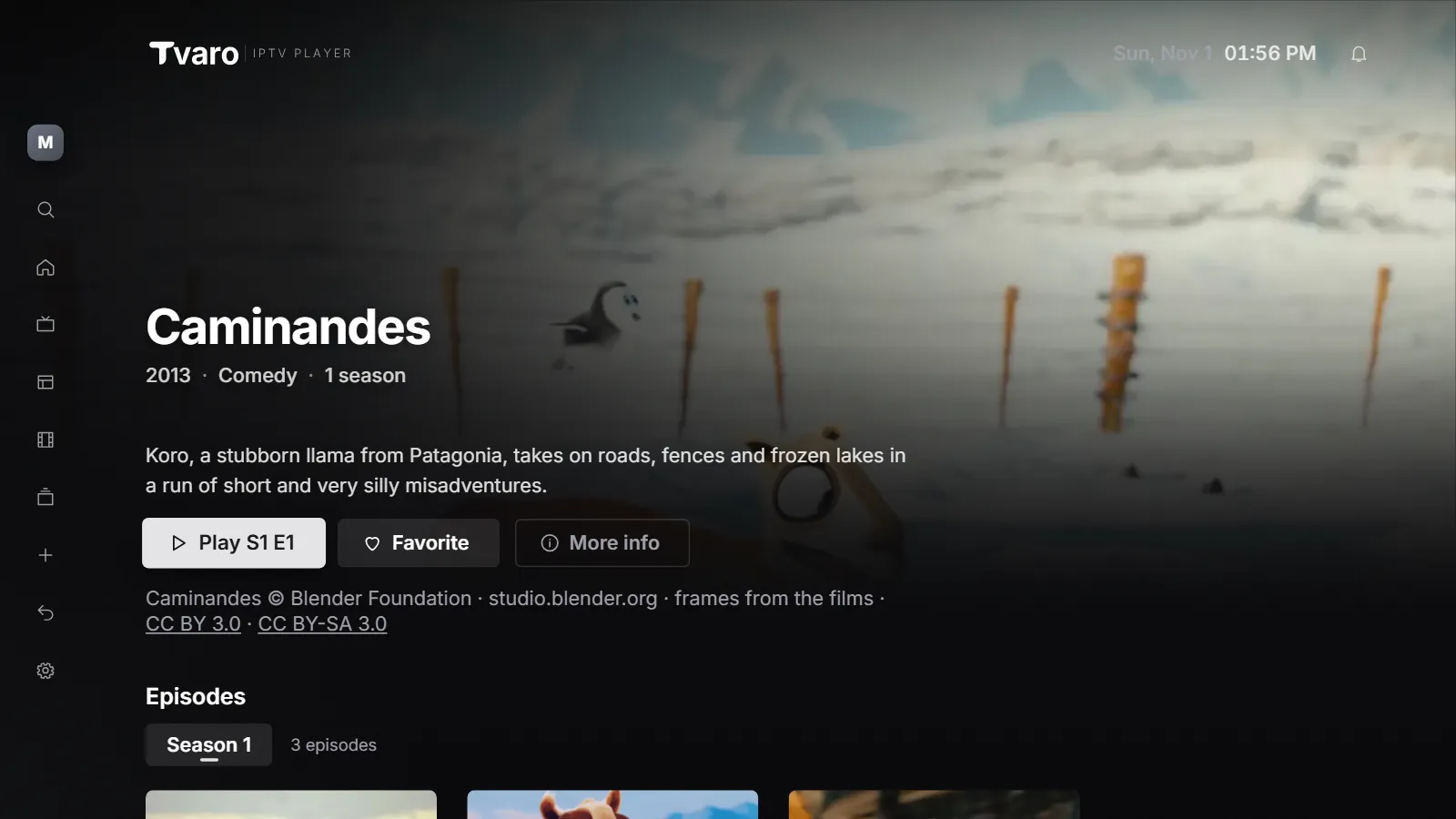
Select a movie or series to open its details page. It shows the artwork, rating, year and description and, when your provider supplies them, quality, audio and age badges, the release date, country, original title, format, director and cast. More info opens the full description and credits.
A movie page has these buttons:
- Play, or Resume if you already started it. The page shows how many minutes are left.
- Play from start, when there is a saved position.
- Favorite, to add the movie to your favorites.
- More info.
- Trailer, when your provider has one. Trailers open on YouTube; in the desktop app they open in your default browser.
A series page has the same buttons, but the main one names the episode: Play S1 E1 for a new series, or Resume S2 E4 (for example) when you are partway through.
Seasons and episodes
Under Episodes, each season has a tab (Season 1, Season 2 and so on) with its episodes in a row below. Move along the tabs to switch season, then select an episode to play it. Episodes you finished carry a Watched badge.
While an episode is playing, the Episodes button in the player lists the rest of the season, so you can jump to another episode without leaving playback.
Resume and Continue Watching
Tvaro saves your position while you watch. Movies and episodes you have not finished appear in the Continue Watching row on Home. Select one to carry on from the same spot.
To remove a title from Continue Watching, highlight it and press Red on a TV remote (F1 on a keyboard), or hold OK (right-click with a mouse) and choose Remove from Continue Watching. This also clears its resume point.
Up Next and autoplay
When an episode ends, an Up next card shows the next episode with a 10-second countdown. Press OK, or select Play now, to start it straight away, or press Back to leave.
To stop episodes from starting on their own, turn off Autoplay next episode in Settings › Player. The player then closes when an episode ends.
Skip intro
Tvaro can skip a series’ opening titles once you show it where the intro ends. You only need to do this once per series.
- Play any episode and let it run, or seek, to the moment the intro ends.
- Press Down until play/pause is highlighted, move along the row to Info and press OK. With a mouse, click Info.
- Under Intro, select Set intro end here. A message confirms the saved time.
- Press Back to close the panel.
From then on, a Skip intro button appears during the intro of every episode of that series. Press Down to highlight it and OK to skip, or click it. To remove the mark, open Info again and select Clear intro end.
Tip
Set the mark on an episode where the intro ends at the usual time. The same point is used for every episode of the series.
Favorites
Select Favorite on a details page; the button changes to Favorited. Selecting it again asks before removing the title.
Favorite movies and series appear in a Favorites row on Home. Once you have favorites, Movies and Series both show a Favorites category near the top of their category list, just after All. In that category, press Red to remove the highlighted title.
Recently watched
The Recent category in Movies and in Series lists what you watched lately. To remove one title, highlight it and press Red, or hold OK and choose Remove from recently watched. Clear history at the top of the list empties it. Settings › History & privacy has more options, including the full watch history.
Sort and filters
In Movies or Series, the sort button reads Sort: followed by the current order. Select it to choose Recently added, A–Z, Newest or Top rated.
Select Filters to narrow the list. A group only appears when your library has that information:
| Filter | Choices |
|---|---|
| Genre | The genres found in your library |
| Year | 2020s, 2010s, 2000s, 1990s, Older |
| Rating | ★ 7+, ★ 8+, ★ 9+ |
| Quality | 4K, HD, SD |
| Watch status | Unwatched, In progress, Watched (series: the first two) |
| Added | Last 7 days, Last 30 days |
Active filters show as chips above the grid. Remove one chip at a time, or select Clear all to start over.