Docs menu
Sign in on a TV with your phone
Sign Tvaro in on your TV from your phone with a short code, and send your account details or a playlist file without typing on the remote.
Typing a server address and password with a remote is slow. On a TV, Tvaro shows a code instead: send your account from your phone, and the TV signs in by itself. Your details are encrypted on the way, so only that TV can read them.
Devices
The code screen appears on Samsung, LG, Android TV and Fire TV. You can send from the Tvaro app on an Android phone, from any phone’s browser at tvaro.live/pair, iPhone included, or from Tvaro TV Manager.
Show the code on your TV
Start on the TV you want to sign in.
- Open Tvaro IPTV Player on the TV.
- Select Add your account on the welcome screen, or Add account in Settings › Accounts.
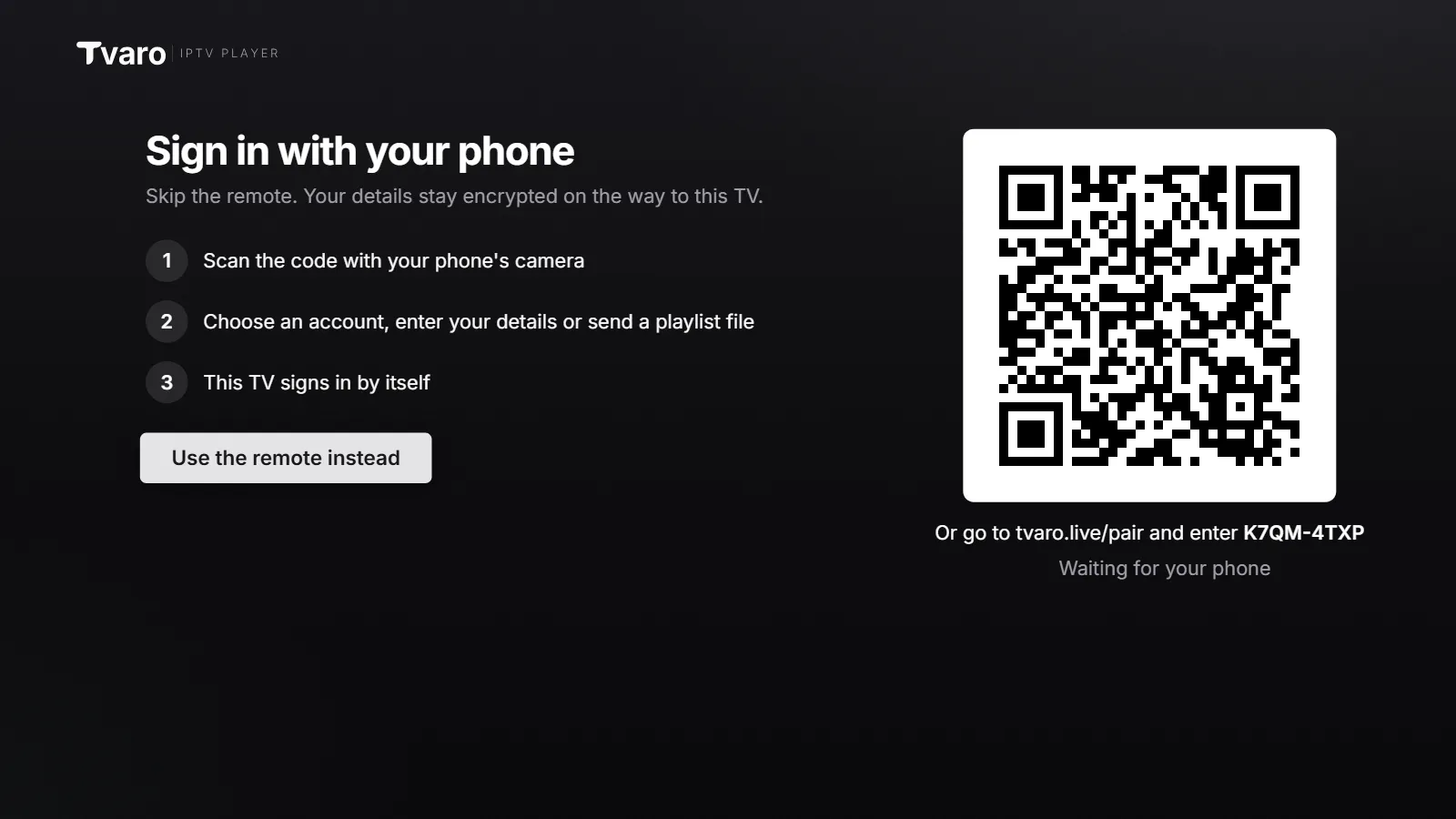
- Sign in with your phone opens with a QR code and a code under it. Keep this screen open while you use your phone.
To type your details with the remote instead, select Use the remote instead.
Send from the Tvaro app on an Android phone
The Tvaro app on your phone can send any account you have already added to it.
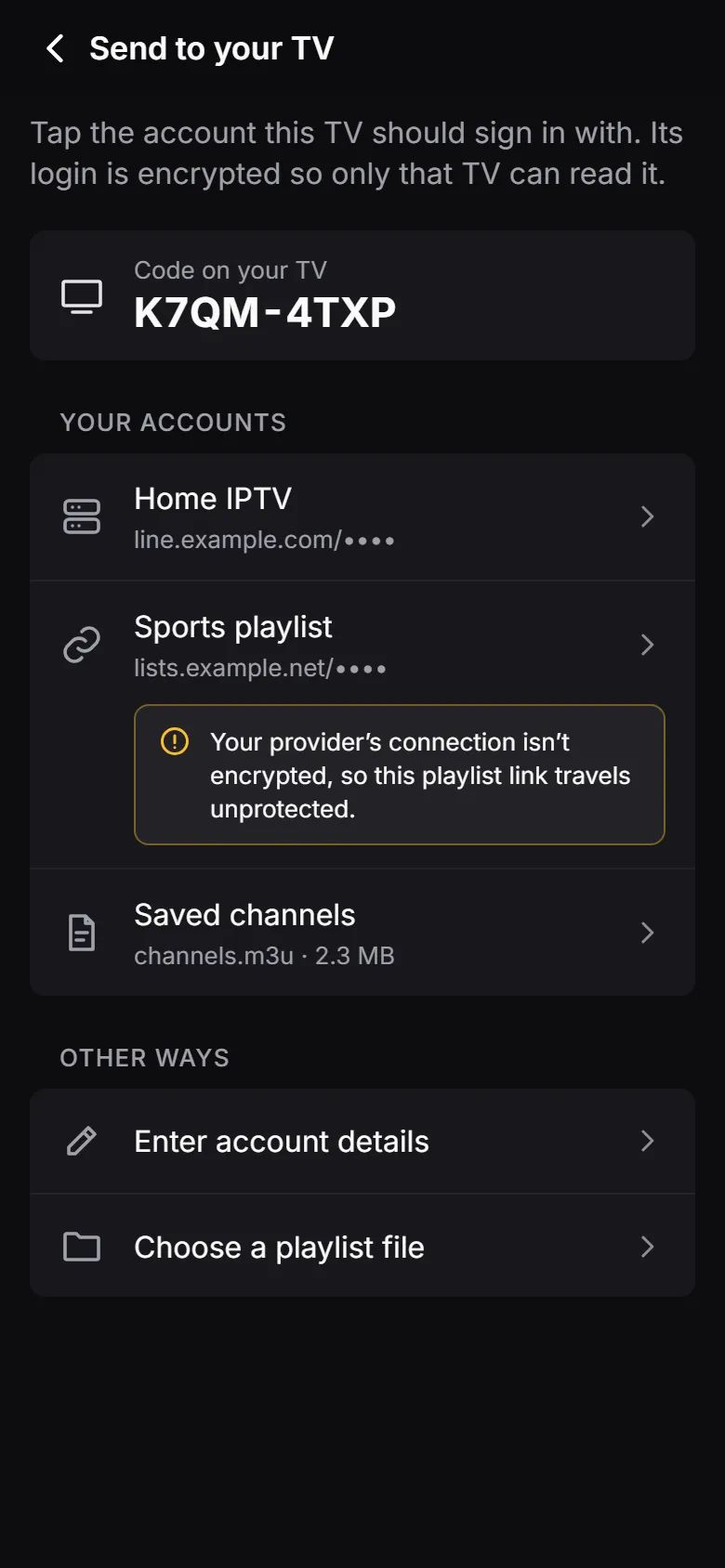
- Scan the QR code on the TV with your phone’s camera, or open Settings › Accounts › Send to a TV and type the code under Code on your TV.
- If the app asks Is this the code on your TV?, compare the codes and tap It matches my TV.
- Under Your accounts, tap the account the TV should use. To use something else, tap Enter account details or Choose a playlist file under Other ways.
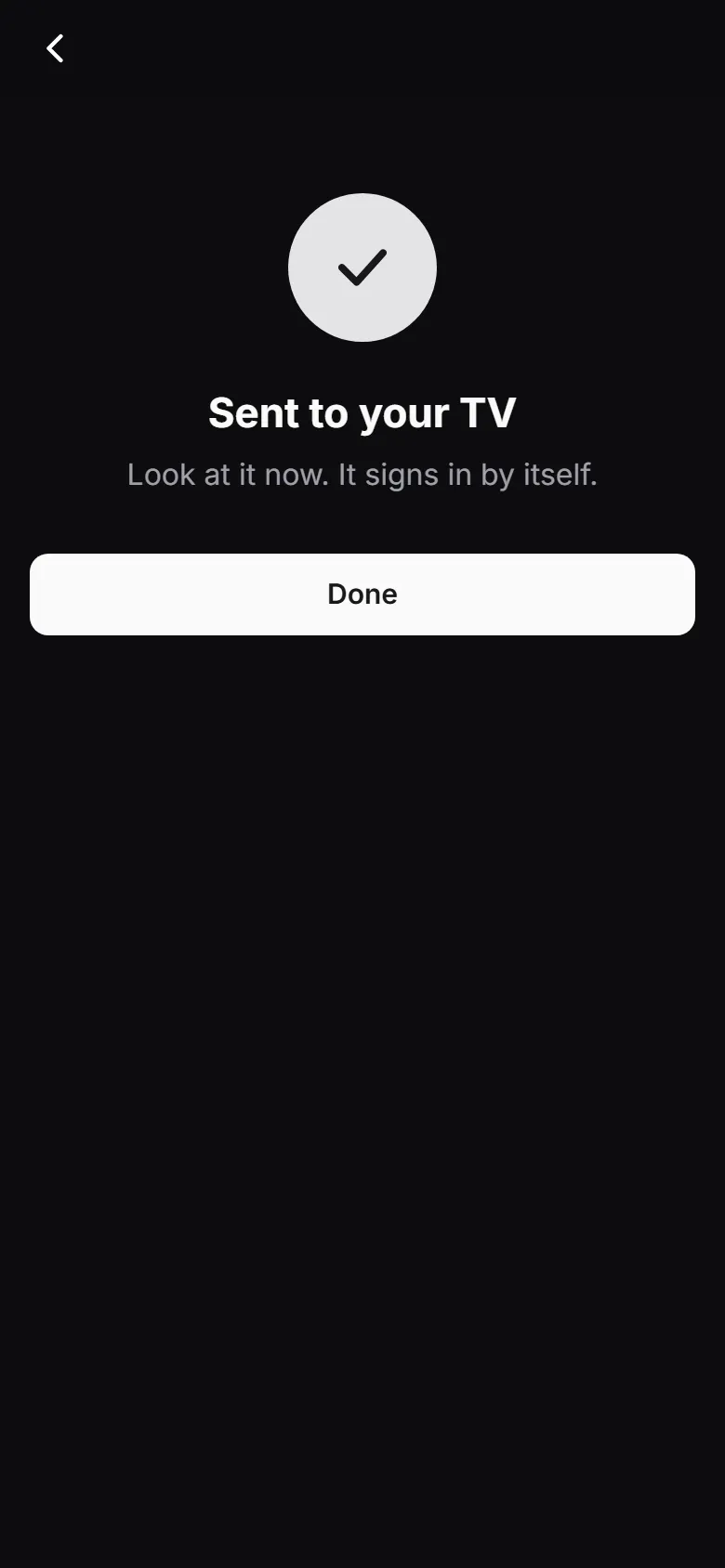
- Sent to your TV appears. Look at the TV, which signs in by itself, then tap Done.
Send from any phone’s browser
Any phone with a browser works, including an iPhone in Safari.
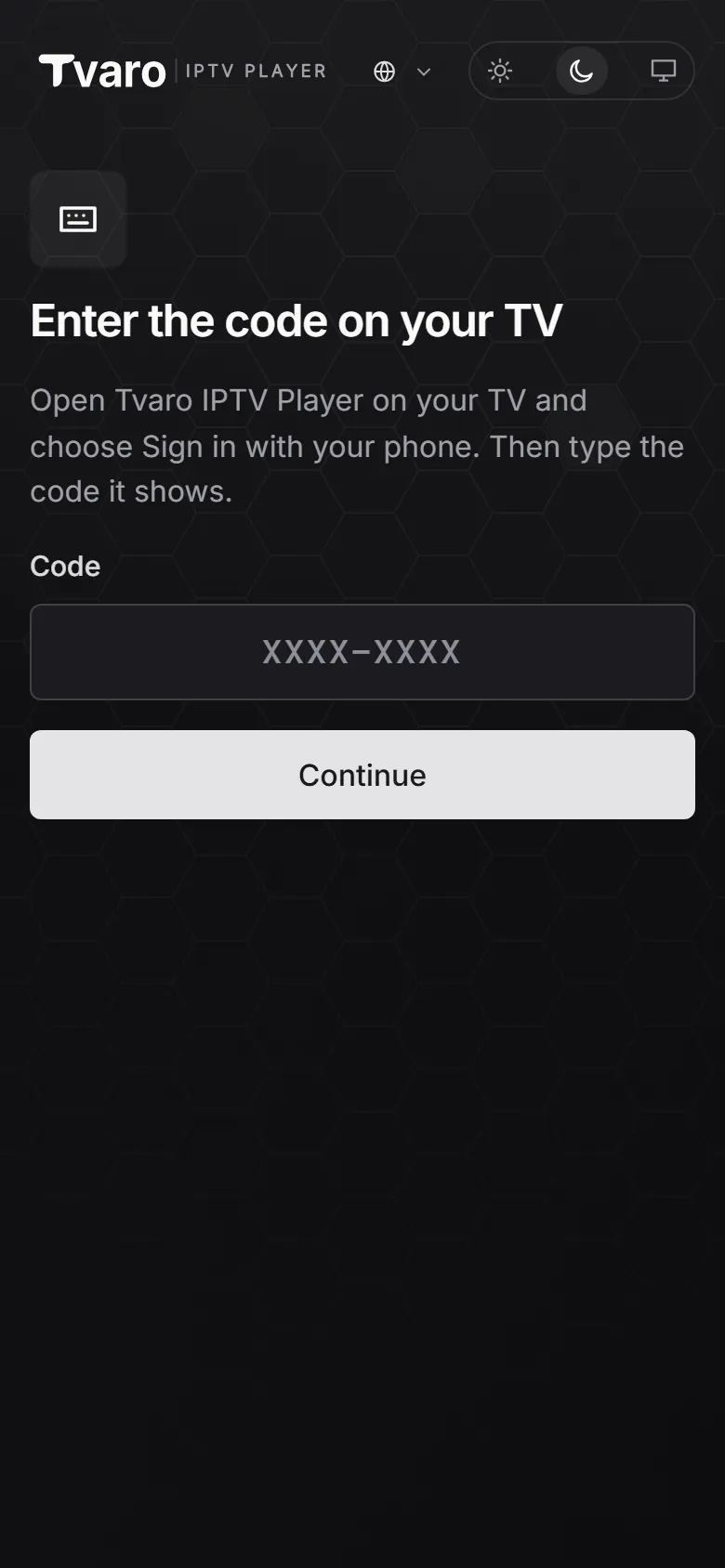
- Scan the QR code on the TV with your phone’s camera, or open tvaro.live/pair and type the code under Code, then tap Continue.
- Check that the code shown matches your TV.
- Choose Xtream Codes, M3U playlist or Playlist file, then fill in the details your provider sent you. A playlist file can be an .m3u or .m3u8 file up to 20 MB.
- Tap Send to my TV. The TV signs in by itself.
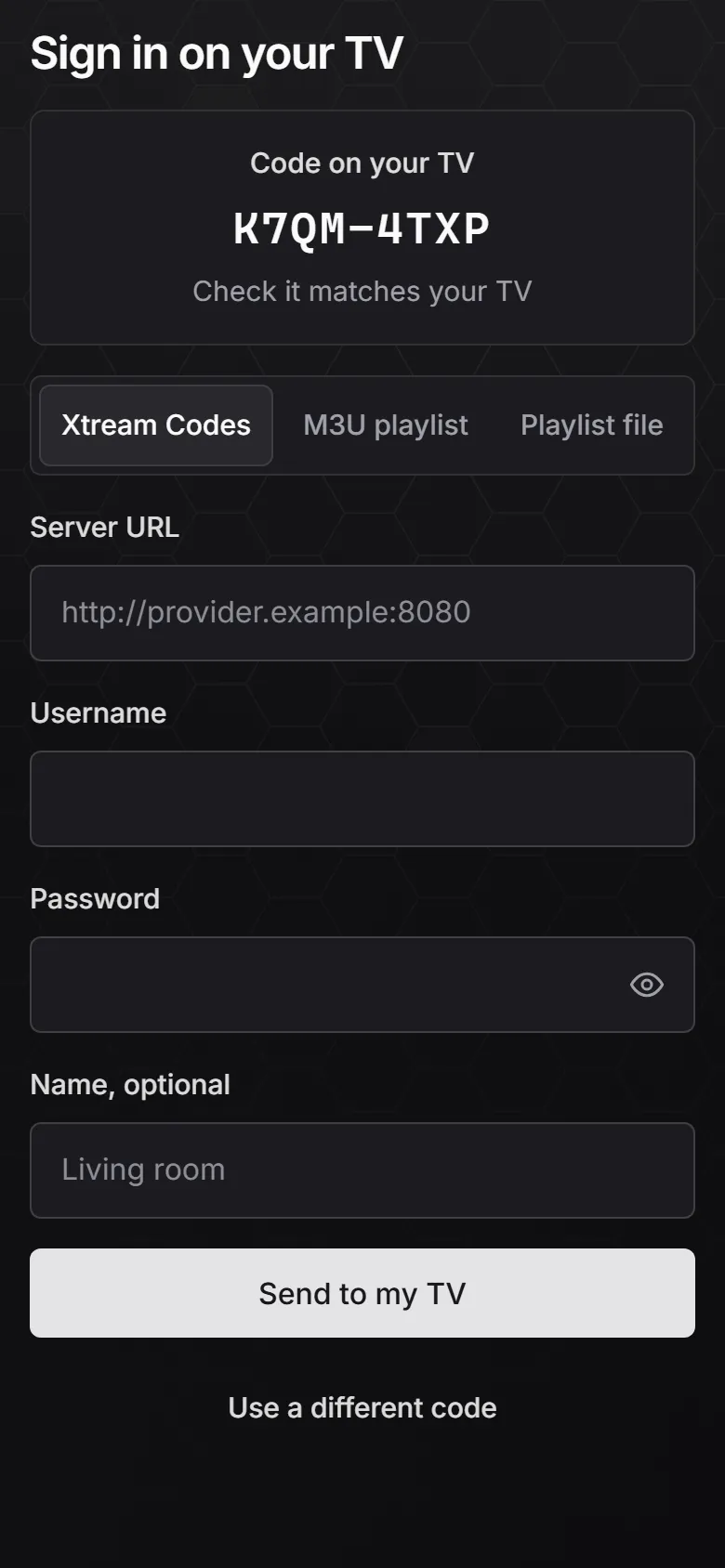
On an Android phone, this page sends you to the Tvaro app, which does the same job.
Send a playlist file from Tvaro TV Manager
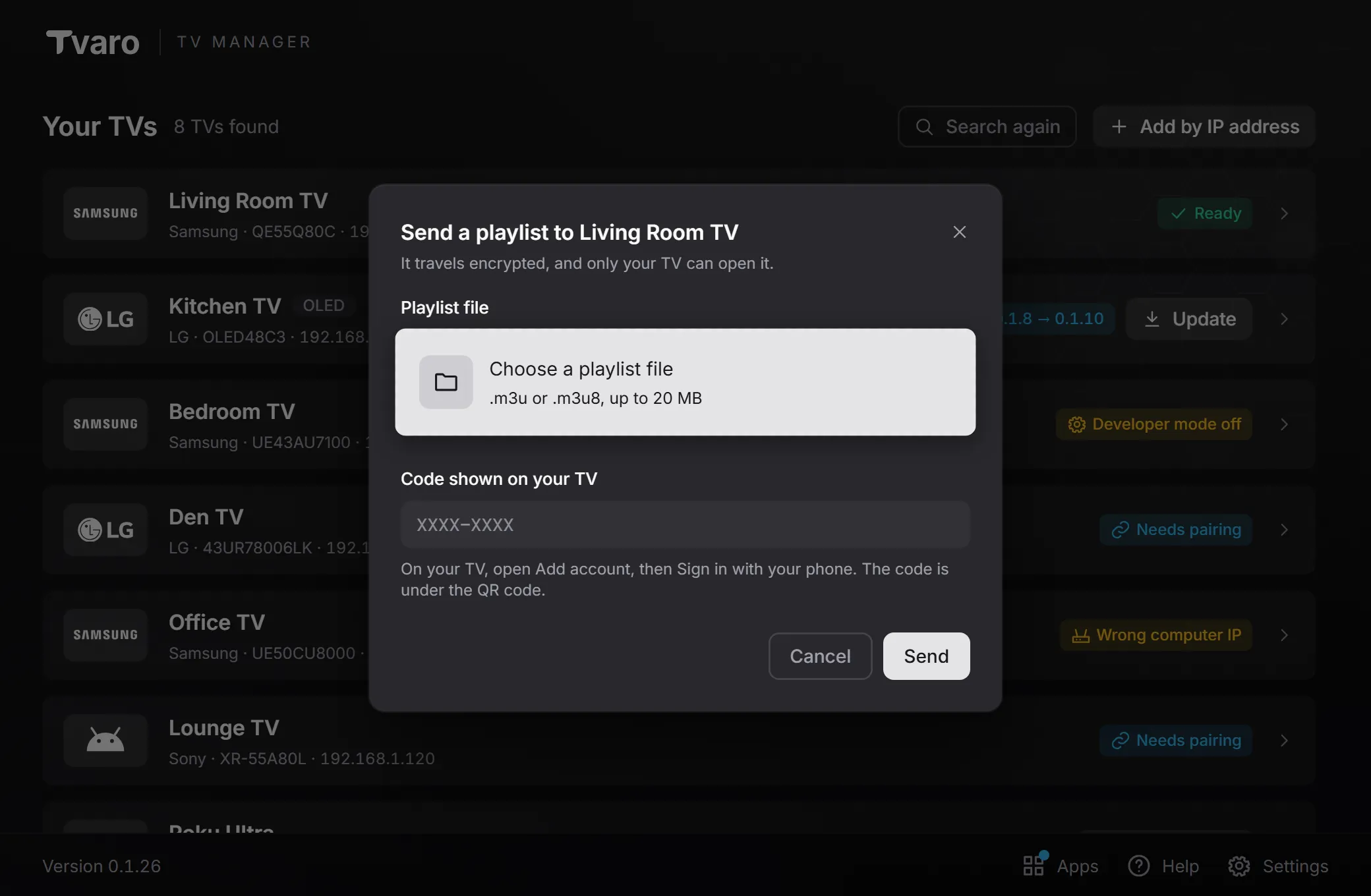
If your provider sent you a playlist file, Tvaro TV Manager can send it straight to a TV it knows.
- In Tvaro TV Manager, open the menu on your TV’s row and select Send playlist.
- Select Choose a playlist file and pick an .m3u or .m3u8 file up to 20 MB.
- Type the code from the TV under Code shown on your TV, then select Send.
- Playlist sent to your TV appears. Keep the code screen open on the TV until it adds the playlist.
What the TV shows
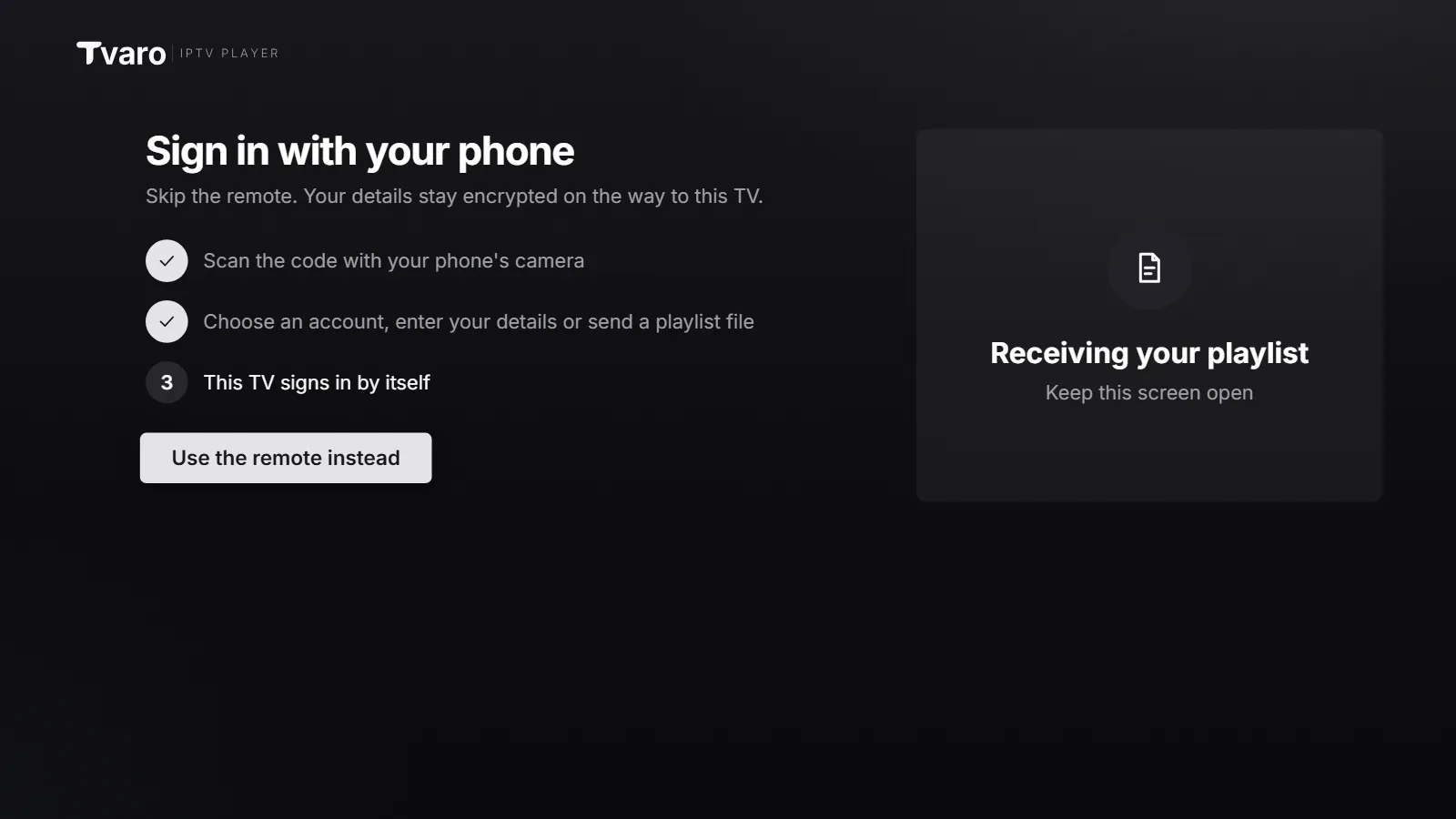
While it waits, the TV shows Waiting for your phone. When your details arrive it shows Details received. Signing in, and for a playlist file Receiving your playlist with Keep this screen open. Tvaro then loads your library as usual.
If it doesn’t work
- This code has expired or was already used: each code works once and only for a short time. The TV shows a new code by itself, so send again with the new one.
- The playlist didn’t arrive. Send it again with the new code. The file didn’t reach the TV in time. Send it again with the code now on screen.
- Too many tries: wait a minute, then try again.
- Phone sign-in is unavailable: check the TV’s internet connection, then try again, or select Use the remote instead.
- This file is too large for your TV: playlist files up to 20 MB can be sent.
Your details pass through Tvaro encrypted and only your TV can open them. Privacy and your data explains more.