Docs menu
Player
Learn Tvaro's player: controls, tracks, quality, picture size, seek previews, the mini player, sleep timer, player styles and touch gestures on phones.
One player handles movies, episodes and live channels. Its controls stay out of the way until you need them, and the Options menu holds everything you can change while you watch.
On-screen controls
For movies and episodes, the controls row has, in order: back 10 seconds, play/pause, forward 10 seconds, Episodes, Info and Options. Episodes only appears for a series with more than one episode, and Info when details are available. The controls hide after a few seconds without input.
Moving between controls
| Action | TV remote | Keyboard and mouse |
|---|---|---|
| Highlight play/pause | Down (press until it is highlighted) | ↓ |
| Move along the row | Left / Right | ← / →, or point at a button |
| Use the highlighted button | OK | Enter, or click |
| Leave the row | Up | ↑ |
| Hide the controls | Back | Esc |
When no button is highlighted, Left and Right seek back or forward 10 seconds instead (mirrored when the app is in Arabic). Play/Pause (Space on a keyboard) pauses at any time, and Rewind and Fast-forward jump 30 seconds. With a mouse, click the picture to pause, or click or drag the progress bar to seek. The Controls page lists every shortcut.
Info opens a side panel with the title’s details and description, extra subtitle files and, for series, the Intro mark used by Skip intro. Episodes lists the current season; select an episode to play it. Press Back to close either panel.
Options menu
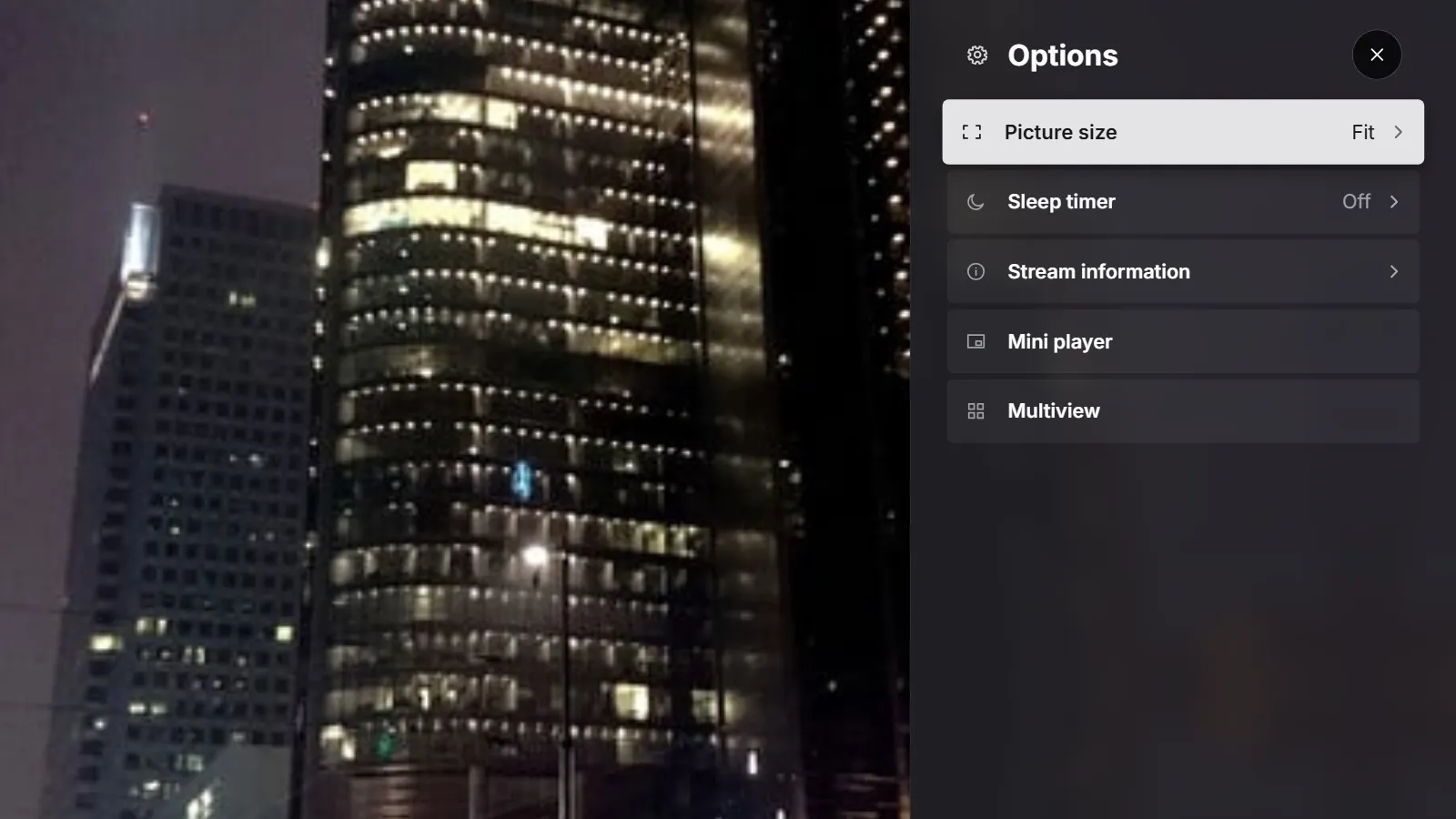
Select Options to open the menu. Each row shows its current value; select a row to change it, press Back to return to the list, and Back again to close the menu. Rows only appear when they apply to the stream you are watching:
| Option | What it does |
|---|---|
| Audio | Picks the audio track. Shown when the stream has more than one. |
| Subtitles | Picks a subtitle track, or Off. Shown when the stream has subtitles. |
| Subtitle delay | Shown while subtitles are on. Moves them by −0.5 s, −0.1 s, +0.1 s or +0.5 s per press; Reset returns to 0. |
| Playback speed | Movies and episodes only: 0.5×, 0.75×, Normal, 1.25×, 1.5× or 2×. |
| Quality | Auto or a fixed quality, when the stream offers several. Some streams also offer Audio only. |
| Picture size | How the picture fits the screen (see below). |
| Sleep timer | Stops playback after a set time (see below). |
| Stream information | Resolution, video and audio codec, audio channels, bitrate, dropped frames, format and player, as far as the stream reports them. |
Below the list, Mini player keeps the stream playing in a small window, and in the desktop app Multiview opens the channel in a split screen. Both are explained on the Live TV page.
Quality and picture size
Quality starts on Auto, which picks the best quality your connection can hold, up to the limit set in Settings › Data saving › Preferred maximum quality. Choose a fixed quality to keep it for the stream you are watching. While Data saver is on, Auto stops at 480p, and each choice shows roughly how much data it uses per hour.
Picture size changes how the picture fills the screen:
- Fit (default): the whole picture, with black bars if the shapes differ.
- Fill: fills the screen and crops the edges.
- Stretch: fills the screen by stretching the picture.
- Zoom: enlarges the picture and crops the edges.
- 16:9 and 4:3: force that shape.
- Original: the picture at its own size.
The choices depend on your device: Samsung has Fit, Stretch, 16:9, 4:3 and Original, LG has Fit, Fill and Original, and Android and iPhone have every size except Zoom. The default for every stream is set in Settings › Player › Picture size.
Devices
Quality isn’t available on Samsung. In the desktop app and on LG it appears only for streams that offer several qualities to the built-in player.
Seek previews
When you seek through a movie or episode, a small picture of the scene appears above the progress bar, so you can find the moment you want. Pictures from parts you already watched cost no extra data. Others load once per movie, up to about 4 MB.
Choose when they load in Settings › Player › Seek previews: Always, Wi-Fi only (default) or Off, which shows the time only. On Samsung, seeking always shows the time only, and live channels, catch-up and M3U playlists show the time only too. On accounts that allow one connection, pictures appear only for parts you already watched; elsewhere you see the time.
Audio and subtitle languages
In Settings › Player, choose a Preferred audio language and a Preferred subtitle language, and turn Subtitles on by default on or off. Tvaro then picks matching tracks automatically whenever a stream offers them. On live TV, the audio and subtitle tracks you pick on a channel are remembered for that channel.
External subtitles
Some providers attach separate subtitle files to movies and episodes. They are listed under More subtitles in the Info panel; select one to load it. If Subtitles on by default is on and the stream has no subtitles in your preferred language, Tvaro loads a matching file by itself. External subtitles follow Subtitle delay like any other track.
Subtitle size, color, edge, background and position are set in Settings › Accessibility.
Sleep timer
Open Options › Sleep timer, or Settings › Player › Sleep timer, and choose 15, 30, 45, 60, 90 or 120 minutes. On live TV you can also choose End of program. Off cancels the timer.
A minute before the time is up, Still watching? appears with a countdown:
- Keep watching adds more time: the same length again, and never less than 15 minutes.
- Stop now stops playback straight away.
If nobody answers, playback stops and Tvaro returns to Home.
Are you still watching?
So a forgotten stream doesn’t use up your data, Tvaro holds playback after 3 hours with no input and asks Are you still watching?. Playback stays on hold until you choose. Change the time, or turn it off, in Settings › Data saving › Ask if you are still watching.
Player styles
Settings › Player › Player style changes how the controls and the live overlay look. Each profile keeps its own choice.
| Style | Look |
|---|---|
| Classic (default) | Title and controls together along the bottom of the screen. |
| Cinema | Large play and skip buttons in the middle, with a slim information strip at the bottom. |
| Glass | A floating rounded panel at the bottom center. |
| Broadcast | A solid bar across the bottom, like a TV channel’s caption bar. |
Live TV overlay
While you watch a channel, the overlay shows the channel, the programme on now with the time left, what is on Next, and the Channels, Favorite, Info and Options buttons.
- Up and Down, or Channel up and down, change channel (
PageUp/PageDownon a keyboard). - Left opens the channel list (Right when the app is in Arabic).
- Number keys tune to a channel number.
- Info opens the channel’s schedule (
Ion a keyboard).
On channels with catch-up, pausing or pressing Rewind takes you back in time; Go live returns to the live broadcast. The Live TV page covers this in more detail.
On phones and tablets
On a phone or tablet, the player follows the way you hold the device and responds to touch:
- Tap the picture to show or hide the controls.
- Double-tap the right side to skip forward 10 seconds, or the left side to skip back. Keep tapping to skip further. In Arabic the sides are swapped.
- On a live channel, swipe sideways to change channel, or swipe up to open the channel list.
- In a series, swipe up to open the episode list.
- Select Lock to ignore touches while you watch, then Tap to unlock.
Advanced player on Windows
The Windows app can play more video and audio formats with an advanced player. Tvaro downloads it once, in the background, shortly after you open the app. There is nothing to set up.