Docs menu
Live TV
Browse and filter channels in Tvaro IPTV Player, organise favorites and groups, zap, rewind live TV, and keep watching in the mini player or multiview.
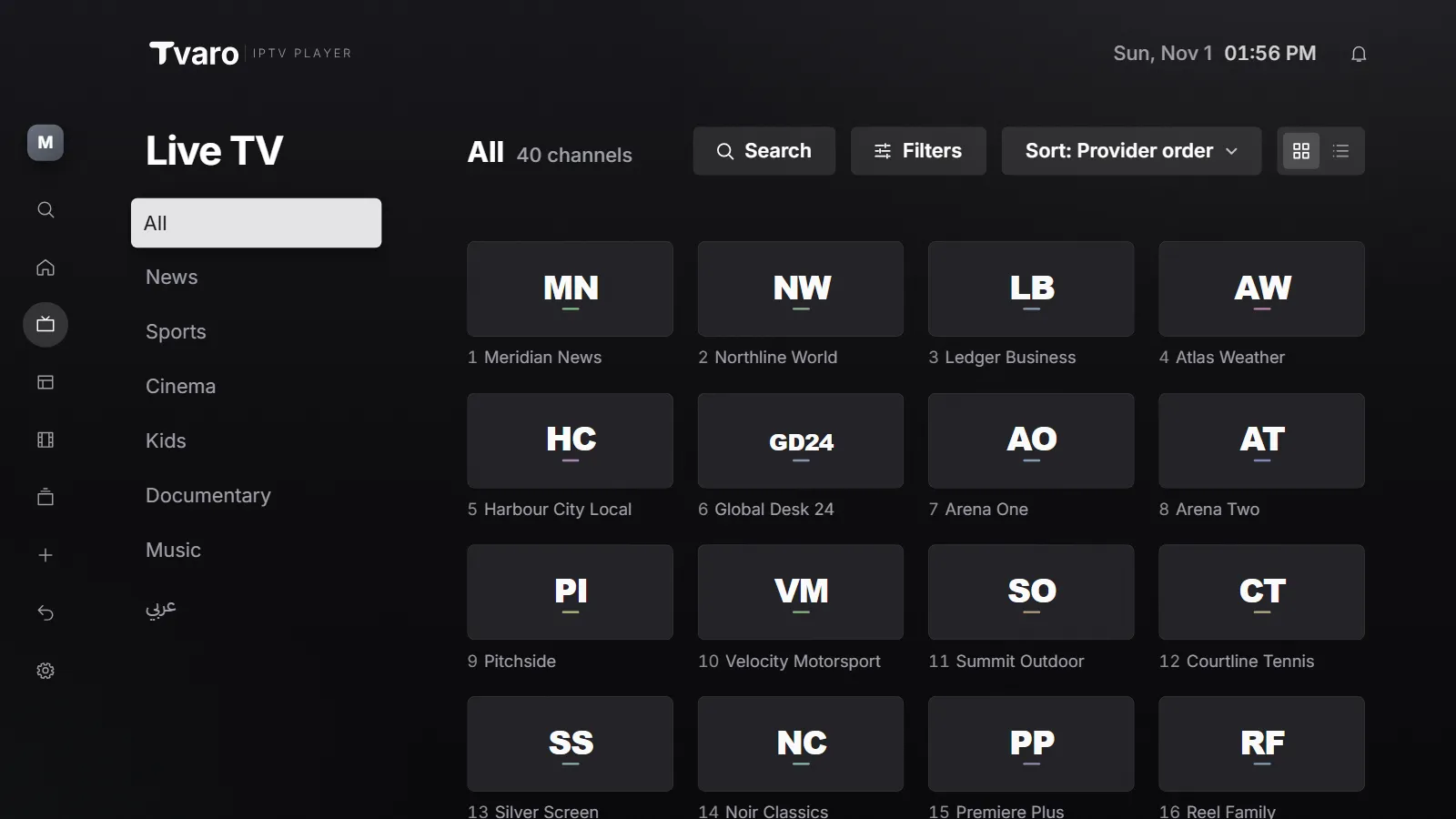
Live TV lists every channel from your playlist, sorted into categories. Pick a channel to watch it full screen, then switch channels without leaving the player.
Categories
The list on the left starts with All, followed by your personal lists and then your provider’s categories:
- Favorites: channels you marked as favorites.
- Recent: channels you watched lately. Clear history at the top empties it.
- Your own groups, by name.
- Hidden channels: channels you’ve hidden.
Personal lists only appear once they have something in them. The header shows the category name and how many channels it holds.
Sort, view and filter
The buttons above the channels change what you see:
- Sort orders channels by Channel number, Name or Provider order.
- The grid and list icons switch between Grid view and List view.
- Filters narrows the list. Depending on your playlist you can show only channels with catch-up (Has catch-up), pick a Quality (4K, FHD, HD, SD) or a Country / language, and Hide adult channels. Select Done to close the panel. Active filters appear as chips you can select to remove, and Clear all removes every filter.
- Search finds channels by name or number within the current category. The Search page explains how matching works.
Channel options
Every channel has an options menu. Open it in any of these ways:
- Select the More options button at the end of its row (in List view).
- Hold OK on the channel, or right-click it.
- On a TV remote, press Green (F2 on a keyboard).
From the menu you can Add to favorites or Remove from favorites, Add to a group, Hide channel or Unhide channel, and, where it applies, remove the channel from the group or from recently watched.
Favorites
Favorites hold up to 500 channels. To change their order, open Favorites (or one of your groups) and select Edit order, select a channel, move it with the arrows, then press OK to drop it. Select Done when you’re finished.
Custom groups
You can create up to 12 groups of up to 500 channels each, for example “Sports” or “Kids”.
- Open a channel’s options and choose Add to a group.
- Select New group, type a name and confirm. The channel is added to it.
- Next time, select an existing group to add or remove the channel.
Inside a group, Edit group lets you Rename it or Delete group. Deleting a group never removes its channels from your library.
Hidden channels
Hide channel moves a channel into Hidden channels. Hidden channels leave Home, the TV guide, search and zapping. To bring one back, open Hidden channels and choose Unhide channel.
In Favorites, Recent, Hidden channels and your groups, Red (F1) removes the focused channel from that list.
Watching a channel
Select a channel to play it full screen.
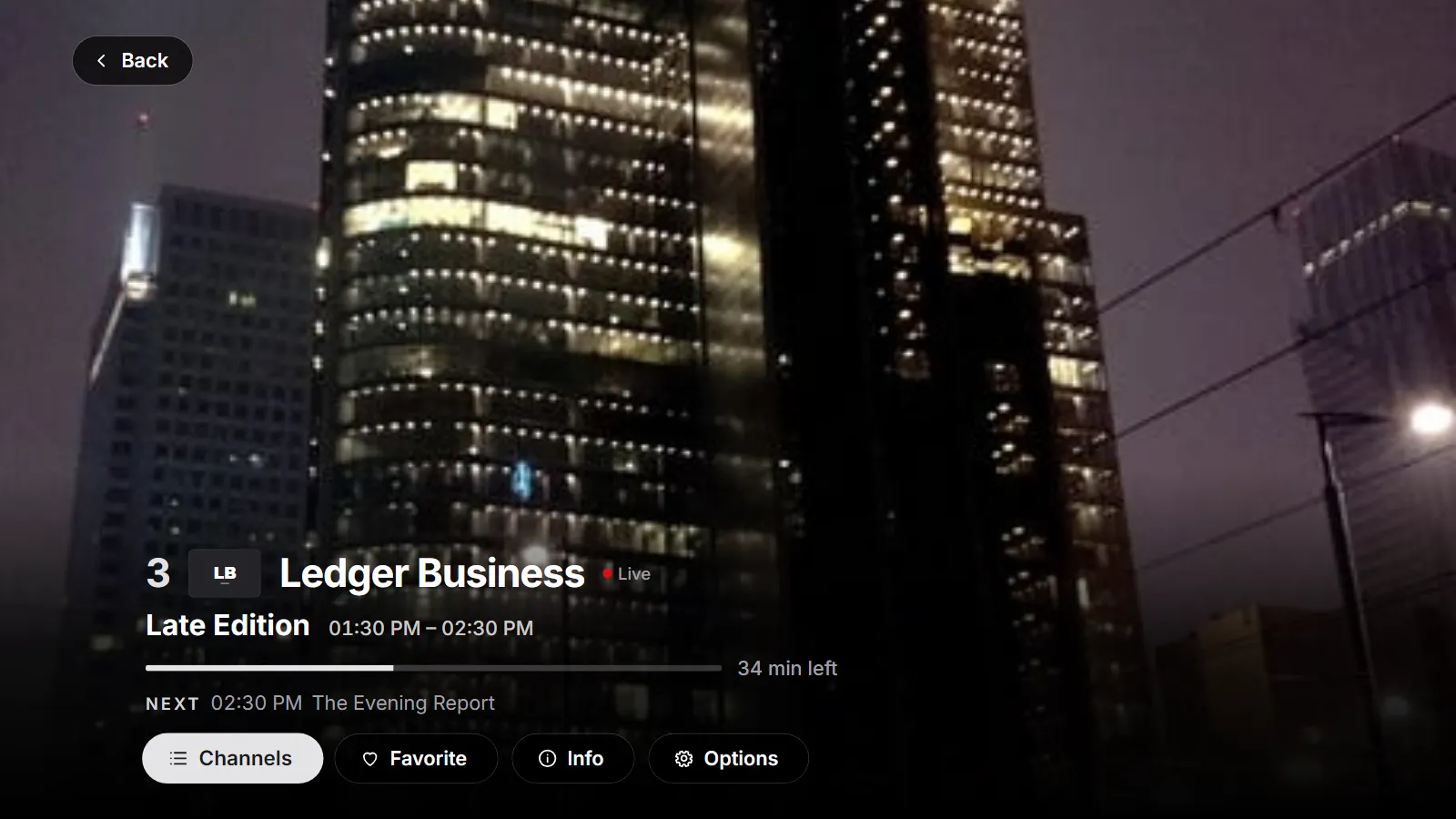
Press OK to show the overlay with what’s on now and next, plus Channels, Favorite, Info and Options buttons. If the stream drops, Tvaro reconnects automatically.
Switching channels
- Zapping: press Up or Down, or Channel up / down (Page Up / Page Down on a keyboard). Hidden channels are skipped.
- Channel list: press Left (Right when the app is in Arabic), or select Channels in the overlay, to pick from a list without stopping playback.
- Number entry: type a channel number with the number keys, then press OK or wait two seconds.
- Previous channel: on a TV remote with a previous-channel button, press it to jump back to the last channel you watched.
The audio and subtitle tracks you pick on a channel are remembered for that channel.
Pause and rewind live TV
On channels with catch-up, you can pause and rewind live TV:
- Press Pause (Space on a keyboard). On a TV remote you can also press Rewind to jump back 30 seconds.
- Resume, and playback continues from where you paused. The overlay shows how far behind live you are.
- Press Left or Right to seek 10 seconds. On a TV remote, Rewind and Fast-forward jump 30 seconds.
- Select Go live, or press Green (F2) or Stop, to return to the live broadcast.
On channels without catch-up, the app tells you Rewind isn’t available on this channel.
Keep watching in the mini player
The mini player keeps a channel, movie or episode playing in a small window in the corner while you browse the rest of the app.
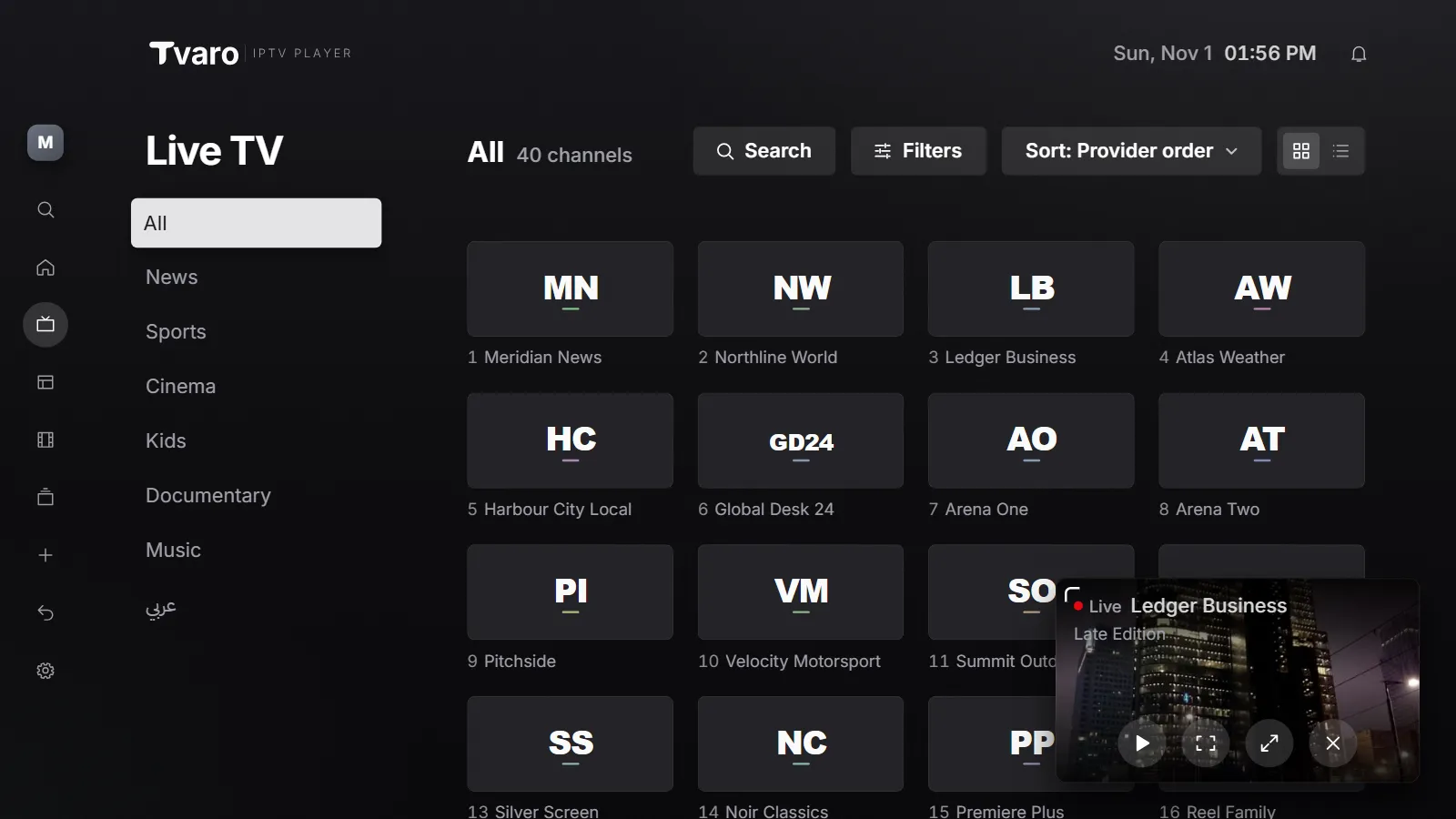
- While something is playing, open Options and select Mini player. The video shrinks to the corner and you return to where you were.
- Press Blue on the remote (
F4on a keyboard) to reach the mini player’s controls. On remotes without color buttons, the hint on screen shows another way. - Use Play or Pause, change its Size to Small, Medium or Large, select Full screen to return to the full player, or Close to stop it.
If the content is locked by parental controls, the mini player stops.
Watch several channels with multiview
Multiview plays up to 4 live channels at once on one screen, for example several matches on the same evening.
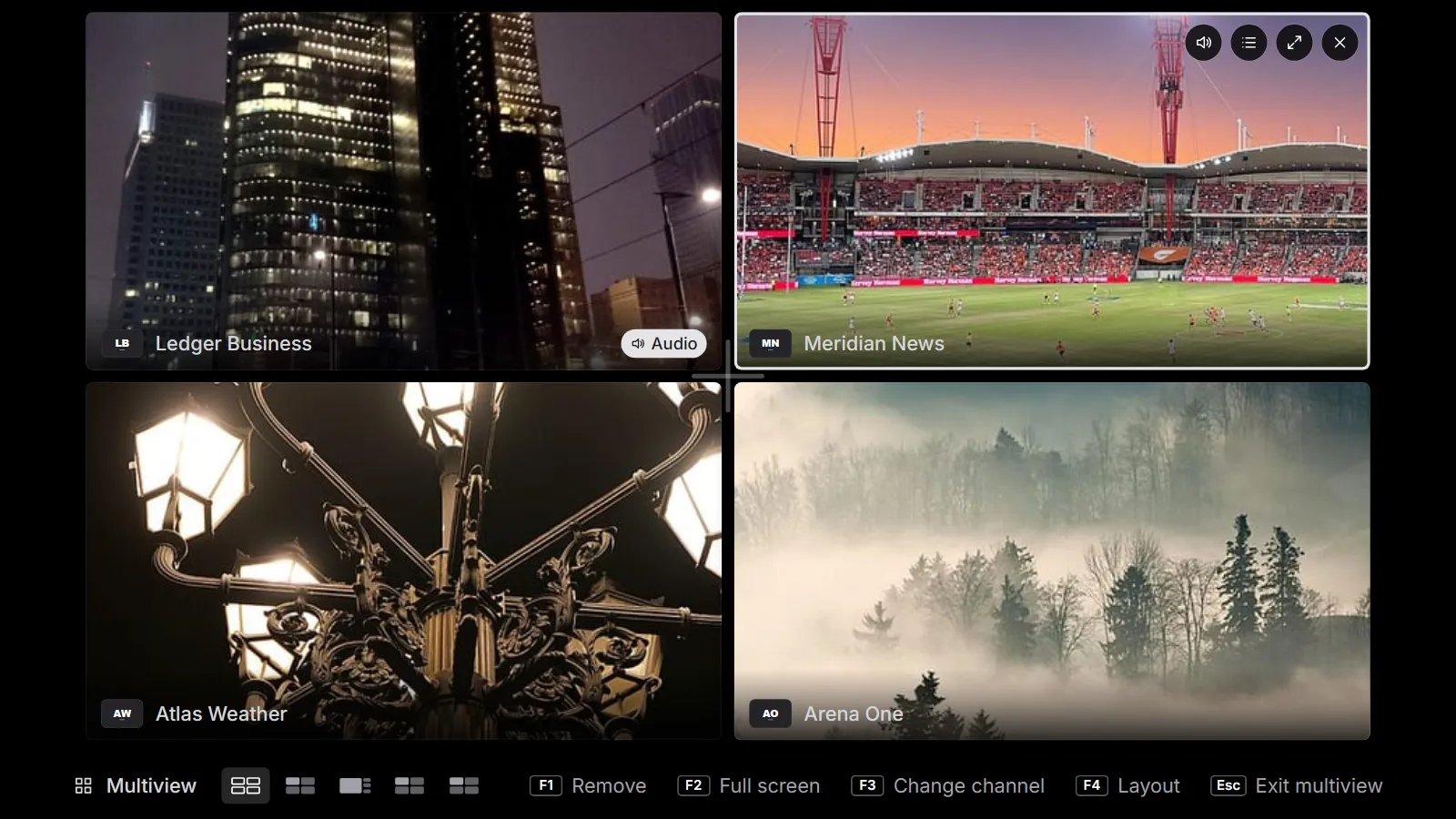
- Open a channel’s options and choose Watch in multiview, or select Options › Multiview while a channel is playing.
- Select Add channel and pick another channel. Repeat for up to 4 channels.
- Highlight a tile to use its buttons: Listen plays that tile’s audio, Change channel swaps it for another, Remove closes it, and Full screen enlarges it until you select Back to grid.
- To arrange the tiles, open Layout and choose Automatic layout, 2 × 2 grid, One large, three small, Side by side or One large, two small. With a mouse, drag a divider to resize and double-click it to reset.
- Select Exit multiview when you’re done.
Each tile uses one of your provider’s connections. If your plan allows fewer connections than the tiles you add, a tile shows, for example, Your provider plan allows 2 connections at once, and both are in use. Close another tile, or stop watching on another device.
Devices
Multiview is available in the desktop app for Windows, macOS and Linux.