Docs menu
Profiles
Create up to five Tvaro profiles so everyone gets their own favorites, history, language and look, switch in a moment and lock a profile with a PIN.
Profiles let everyone in the household keep their own favorites, history and settings on the same playlist account. Each account can have up to 5 profiles, and every account starts with one called Main.
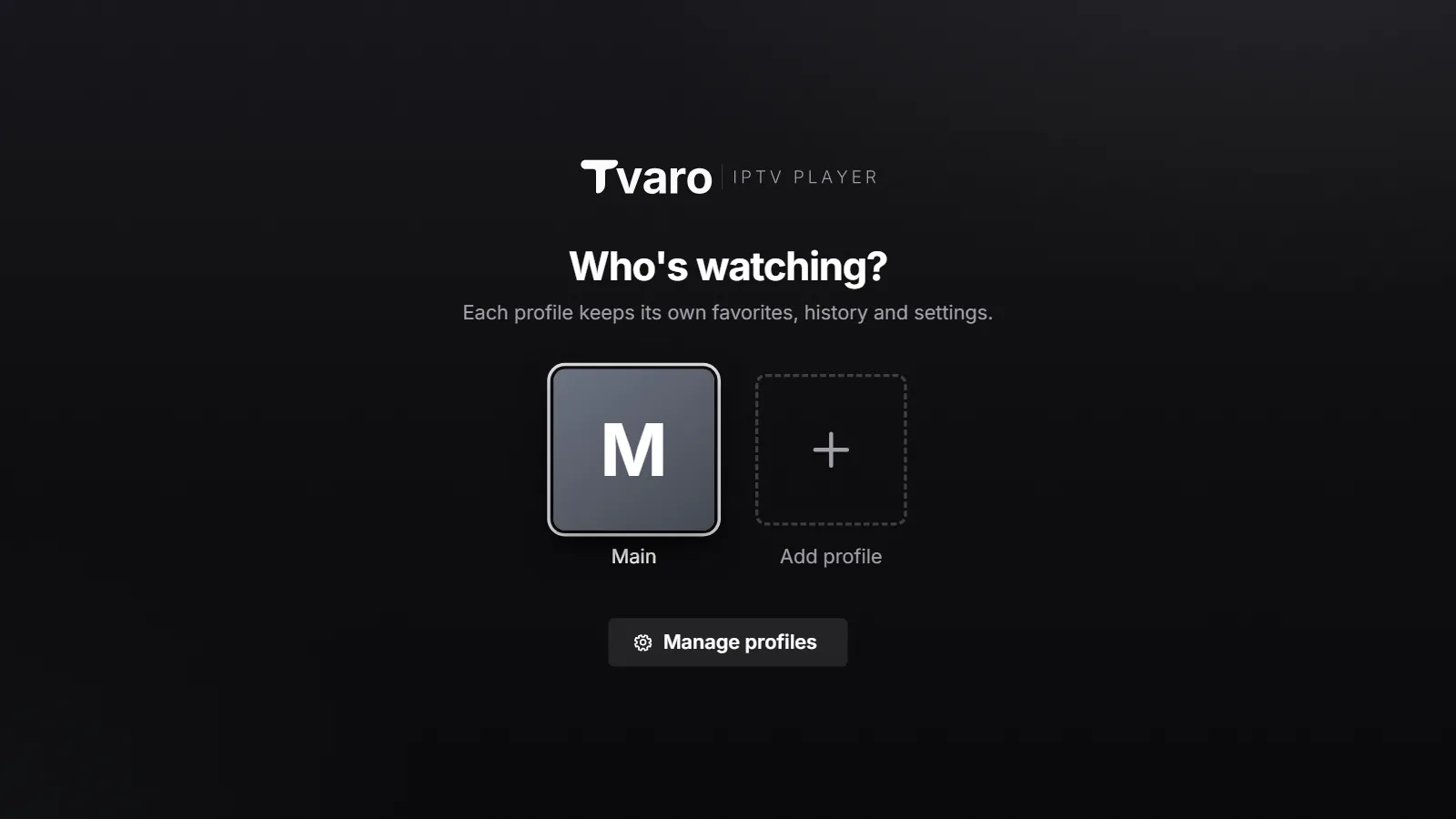
Who’s watching?
When an account has more than one profile, Who’s watching? opens each time Tvaro starts. Select a profile to continue. A profile with a lock icon asks for its PIN first.
You can open this screen at any time from Settings › Accounts › Switch profile.
Switching profiles
There are two quick ways to switch without going back to Who’s watching?:
- Select your avatar at the top of the sidebar.
- Press Yellow on a TV remote (
F3on a keyboard).
A panel opens with every profile, plus Add profile and Manage profiles. Pick a profile and you stay on the same screen; a short message confirms who is now watching. Yellow does not open the panel during playback.
What each profile keeps
Each profile has its own:
- Favorites, watch history and Continue Watching, including resume points
- Parental controls and an optional Profile PIN
- Language, Theme and Background pattern
- Player style, Guide layout and Autoplay next episode
- Preferred audio and subtitle languages, and subtitle appearance
- Reduce motion and Save watch history
The account itself is shared, and so are device-wide settings such as Clock, Start screen, Picture size and the automatic update schedules.
Adding and editing profiles
- Open Manage profiles from Who’s watching? or from the switch panel, or select Add profile.
- To edit, choose the profile you want to change.
- Enter a Name (up to 20 characters) and pick a Color for the avatar.
- Select Save.
Select Done to leave the manage view. Add profile disappears once the account has 5 profiles.
Delete profile permanently removes that profile’s favorites, history, progress and settings, after asking you to confirm. The Main profile can be renamed but not deleted.
Note
Once any profile uses parental controls or a profile PIN, adding, editing or deleting profiles asks for a PIN first, and so does Accounts. When the main profile has a parental PIN, that is the one to enter.
A profile added while parental controls are on for another profile starts with the same PIN and the same locks.
Profile PIN
A profile PIN decides who can open a profile. It is separate from the content locks described on the Parental controls page.
- Switch to the profile you want to lock.
- Open Settings › Parental controls.
- Turn on Profile PIN.
- Choose a 4-digit PIN and enter it again.
A locked profile shows a lock icon and asks for its PIN when you choose it on Who’s watching?, in the switch panel or at launch. If Tvaro has been in the background for 10 minutes or more, it goes back to Who’s watching? and asks again.
To remove the lock, turn Profile PIN off in the same place. When parental controls are in use, Tvaro asks for the parental PIN before changing this setting.
Tip
Give each person a different avatar color so profiles are easy to tell apart on Who’s watching?.